
Update software
Linux distributions are frequently updated to fix bugs, add new features, and patch security vulnerabilities. To take advantage of the new packages and patches, you'll need to remember to perform system updates every once in a while.
Update installed packages
To check for software updates and install them, see Update system packages.
Apply kernel updates
When you first sign up for an account and create a Linode, Cloud Manager automatically creates a configuration profile that uses either the distribution's system kernel (in most cases) or uses the latest available Akamai-supplied kernel.
If your system is using an Akamai-supplied kernel, it's important to know that we update the kernels as necessary and make them available in Cloud Manager. In most cases, new kernels are automatically selected and, once a new kernel is released, all you have to do is reboot your Linode to start using it.
To check for a new kernel and start using it on your Linode:
-
First, check what version kernel your Linode is currently using. Log in to your Linode and execute the following command:
cat /proc/version -
Examine the output and remember the version number:
Linux version 4.15.12-x86_64-linode105 (maker@build.linode.com) (gcc version 4.9.2 (Debian 4.9.2-10+deb8u1)) #1 SMP Thu Mar 22 02:13:40 UTC 2018 -
Log in to Cloud Manager.
-
Click the Linodes link in the sidebar.
-
Select your Linode. The Linode's details page appears.
-
Select the Configurations tab.
-
Locate the configuration you want to change and click Edit.

-
Under Boot Settings, select the new kernel from the Kernel dropdown menu.
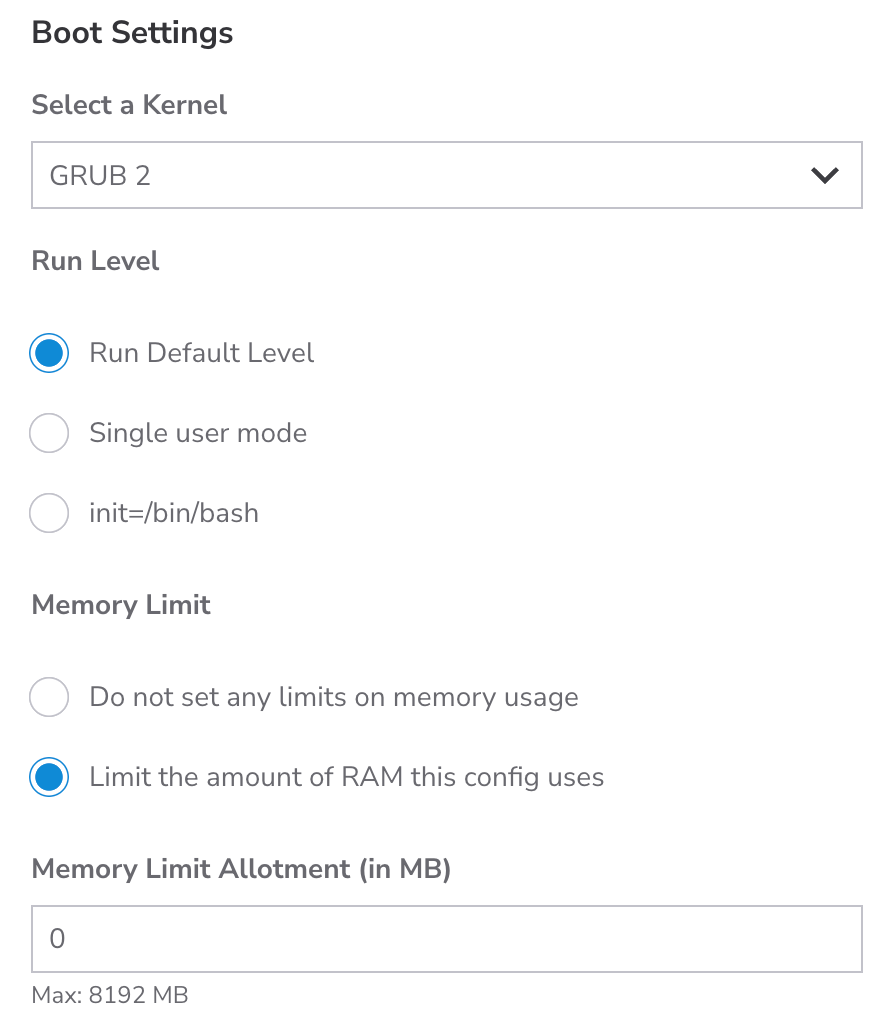
-
Click Save Changes.
-
Reboot your Linode to start using the new kernel.
 .
.
Upgrade to a new release
Linux distributions such as Ubuntu and Fedora use version numbers to identify the individual versions, or releases, of the operating system. It's important to know which release your server is running, as releases are usually supported for one or more years. After support for your release is discontinued, you won't be able to download or apply critical security packages, which can put your server at risk.
There are two ways to upgrade a Linode running an unsupported release. You can upgrade your existing server to the next release, or you can create a new Linode with the newest release available and transfer your files from the old server. See our upgrading guides for more information.
Check the distribution's website to learn when support for your release will be discontinued. Ubuntu offers a long-term support (LTS) release that is supported for five years.
Updated 5 months ago