
Metrics dashboards
Metrics dashboards provide visual representations of the numerical measurements collected from a cloud service. Dashboards help you understand how a service is performing over time—for example, how much capacity it uses, how quickly it responds, or how much work it's handling. Dashboards make it easy to identify trends, compare current behavior with past patterns, and quickly detect when something isn't operating as expected.
Centralized and contextual dashboards
You can view metrics in Cloud Manager using centralized dashboards or contextual (entity-level) dashboards, depending on the scope of the data you want to explore.
Centralized dashboards aggregate metrics from multiple entities of the same service type and present them in a unified view. They help you compare performance across resources, identify patterns, and understand overall service behavior. To access centralized dashboards, navigate to Monitor > Metrics in Cloud Manager.
Contextual dashboards display metrics for a single entity within a service, such as a specific database cluster. They help you understand the individual performance and behavior of that entity. To view an entity-level dashboard, open an entity's details page and look for the option to view Metrics.
When used together, centralized and contextual dashboards provide both a high-level view of service behavior, and deeper insight into individual entities.
NodeBalancers metrics dashboardsCurrently, only the centralized NodeBalancers dashboard accessed from the Metrics page of Cloud Manager uses Akamai Cloud Pulse metrics. Contextual dashboards accessed from the NodeBalancers section of Cloud Manager continue to display legacy graphs.
Dashboard components
Metrics dashboards are organized into two main areas:
- Dashboard controls enable you to set the dashboard, time range, filters, and grouping options
- Widgets. display metrics visually based on your selections
After you apply your settings, the selected dashboard displays widgets containing the corresponding metrics data.
Dashboard controls
Dashboard selector dropdown
Select the dashboard you want to view from the dropdown list. Dashboards are organized by service. A service can have multiple dashboards, each highlighting a different types of information, such as performance or resource usage. Each dashboard contains a set of widgets focused on related metrics.
Time range date picker
Use the date picker to select the time range for the data displayed in the metrics dashboard. Specify a start and end date and time, or choose from the available preset ranges, for example, Last hour. The default time range and available presets vary by service.
You can query up to 31 days of data at a time. The dashboard automatically adjusts the granularity at which metrics data is aggregated based on the selected time range.
Global Group By icon
Use Global Group By to split data into separate time series lines based on selected dimension values. Global Group By affects all widgets on the dashboard, so only dimensions supported by every widget can be selected. If multiple dimensions are selected, data is split according to those dimensions in the order selected. Widget-level groupings can be applied on top of the global grouping.
To use Global Group By, click the Global Group By icon.
Note: The Global Group By feature may not be available on all dashboards. Some dashboards provide a segmented control instead, allowing you to select the grouping dimension that applies to all widgets in the dashboard.
Filters
Filters help narrow down the list of available entities. The filters available depend on the service associated with the dashboard. You can select up to 10 entities for visualization.
Dashboard tabs
Some dashboards organize widgets into separate tabs based on the type of information displayed. Click a tab to view the corresponding group of widgets.
Note: Not all dashboards have multiple tabs.
Widgets
Widgets visualize metrics data. They contain both graphical and tabular representations of the data. The number and types of widgets vary by service.
Widgets include the following components:
-
A chart showing how the metric values change over time. This chart makes it easy to identify trends, spikes, and patterns.
-
A color-coded legend or a summary table with a legend as and detailed metrics aggregations.
-
Hover tooltips.
-
An aggregation interval dropdown to select your preferred aggregation interval.
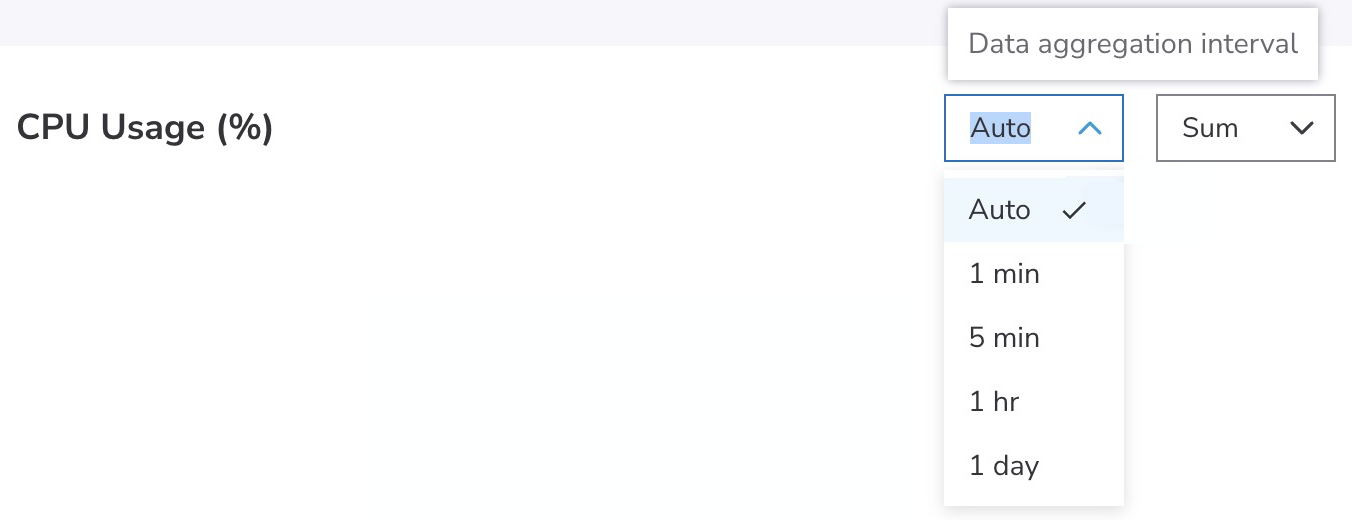
Metrics can be aggregated at intervals of 1 minute, 5 minutes, 1 hour, or 1 day. When set to Auto, the dashboard determines the appropriate interval based on the selected time range.
Time ranges map to the following granularities:
Time range Granularity Less than 24 hours 1 minute 24 hours to 7 days 5 minutes More than 7 days 1 hour -
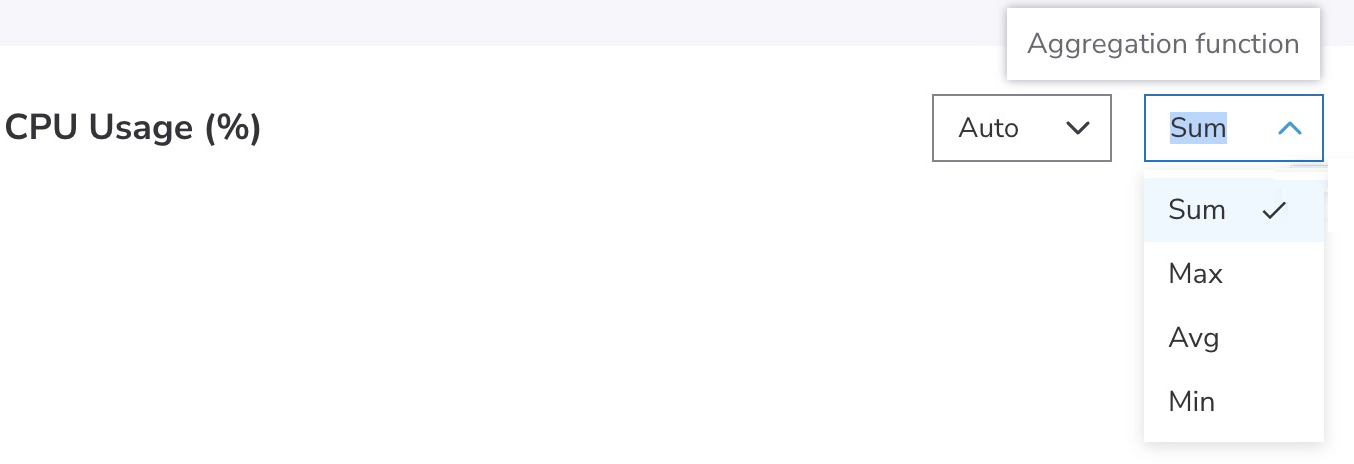
An Aggregation function dropdown to specify metrics values are aggregated, for example, sum, maximum, minimum, or average.
-
A group by icon to group data within an individual widget by a selected dimension. Not all dashboards support widget-level grouping.
Widget tools
You can work with widgets in the following ways:
- Filter icon: Filter by dimension, if available
- Download icon: Download widget data to CSV
- Group by icon: Group data into separate time series lines by dimension
- Expand/contract icon: Change the width of the widget from 50% to 100% or 100% to 50%
- Drag to zoom: Zoom in on a specific time range within the dashboard-level time range by dragging across a chart
Download dashboard data
Download metrics data at the dashboard and widget levels for offline analysis, reporting, and sharing.
- Download a dashboard. Click the dashboard download icon to download the dashboard as a PDF document.
- Download widget data. Click the widget download icon to download widget data as a comma-separated values (CSV) file.
Understanding data gaps in charts
A gap or break in a metrics chart indicates that no metric data point was available for the corresponding reporting interval. A gap does not necessarily represent a measured metric value of zero.
For most compute, container, and database services, gaps usually result from temporary service disruptions or delays in metric collection or reporting.
For Object Storage dashboards, gaps most commonly occur during periods of inactivity when no read, write, or other storage operations occurred during the reporting interval, resulting in no metric data point being generated. Similar to other services, gaps in Object Storage metrics can also result from temporary service disruptions or delays in metric collection or reporting.
Next steps
- Try using the centralized dashboard.
- Learn more about accessing entity-level dashboards.
- See descriptions of the metrics and dimensions for each service in the reference guides .
Updated 1 day ago