
Trusted Networks for GPA Client (Limited Availability)
Overview
EAA Connectors can now be configured to function as Local POPs. When a user's device is connected to an in-office trusted network, traffic from the GPA Client is routed directly through the Local POP for Zero Trust (ZT) policy enforcement, bypassing the Akamai Edge or Cloud. This eliminates unnecessary traffic hairpinning, reduces latency, and improves application performance.
It is only supported for Edge Transport based Tunnel Applications and Hybrid Tunnel Applications. It is not supported for TCP-type or Tunnel-type Client access applications.
NoteThis feature is in limited-availability (LA) and can be enabled in your contract by contacting Akamai support. It is supported for GPA Client 7.5 version and higher.
Problem
Today, it is not uncommon for employees to access the corporate applications from their home or the office. It is important for the network to detect the location of the employee and choose the most optimal route with the least latency.
In the figure 1 below, we have the Akamai Regional DPOP and the traditional EAA connector residing inside the data-center. When an employee accesses any Cliented App1, App2 from home or any other remote location (e.g. coffee shop), after being authenticated, the traffic is routed through the Akamai Edge and Connector. However, when the same employee accesses the same applications from the office, since traffic is always routed through the Akamai Edge, it has a hairpinning effect, resulting in a non-optimal performance and unwanted delay.
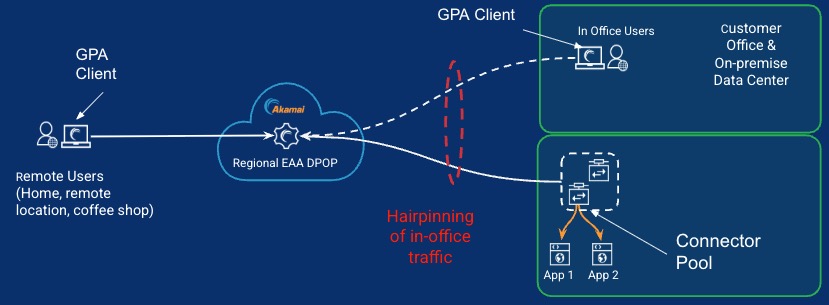
FIGURE 1: Hairpinning effect for accessing Tunnel-type client-access apps from inside office using standard connector pool with EAA connectors
Solution
To address this problem, Akamai is introducing the LPOP Connector Pool, which is a connector strategically deployed within the private network, equipped with the enhanced capability to directly onboard traffic from in-office employees who have GPA Client installed on their work laptops. When the LPOP Connector Pool is part of a Trusted Network and satisfies the optimal routing ruleset specified in the AAG, it uses the In-Office Connect through the LPOP mode in the connector pool to route the traffic. In this way there is no-hairpinning, providing the most optimal route based on the employee’s location. If the direct route is not available, then the back-up route will be used.
The LPOP mode is available for tunnel-type client access applications, hybrid applications, and edge transport based tunnel applications.
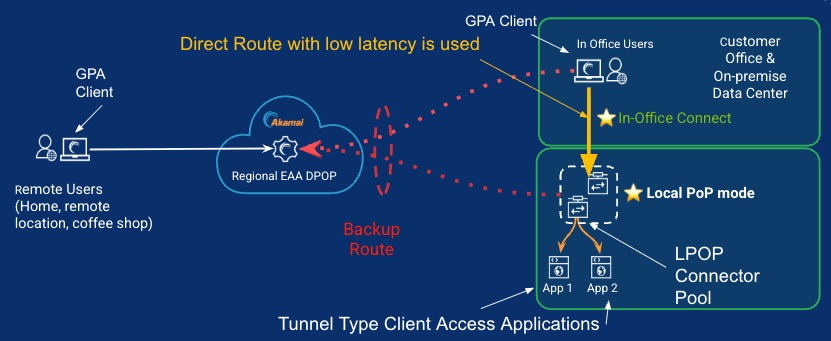
FIGURE 2: Tunnel type client-apps in AAG using in-office connect route or backup route
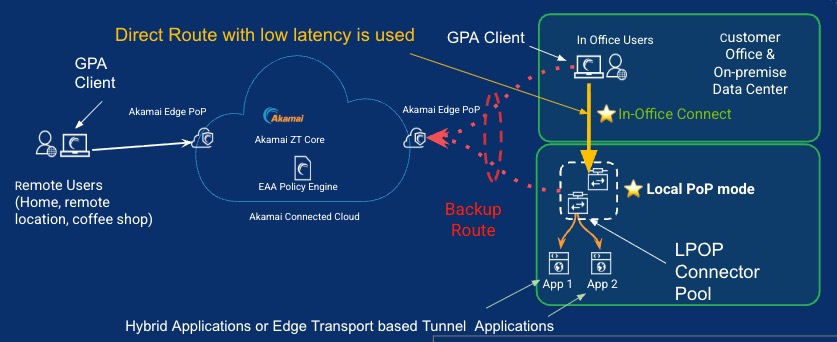
FIGURE 3: Edge Transport based tunnel-apps or Hybrid-apps in AAG using in-office connect route or backup route
Trusted Network
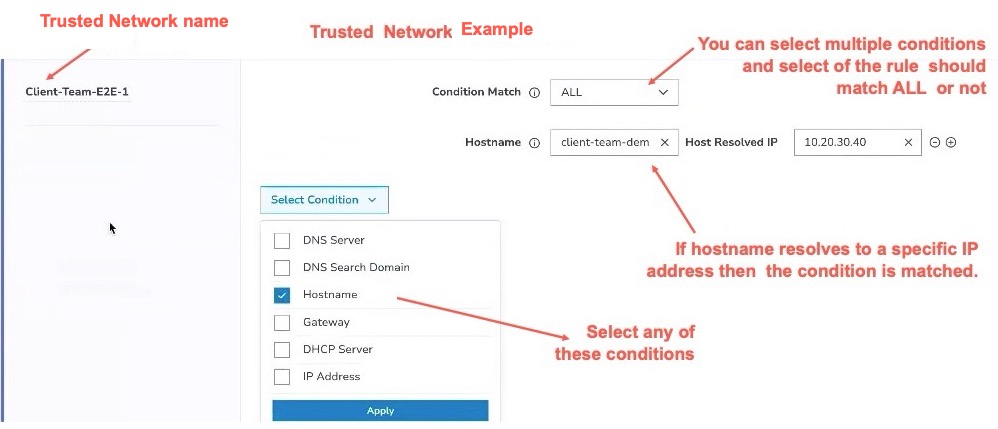
A trusted network is a set of one or more conditions that are configured with the Enterprise Center. The GPA Client evaluates if ANY or ALL of the different conditions are matched and associates itself with the trusted network. If none of the conditions are matched, it is not part of the trusted network.
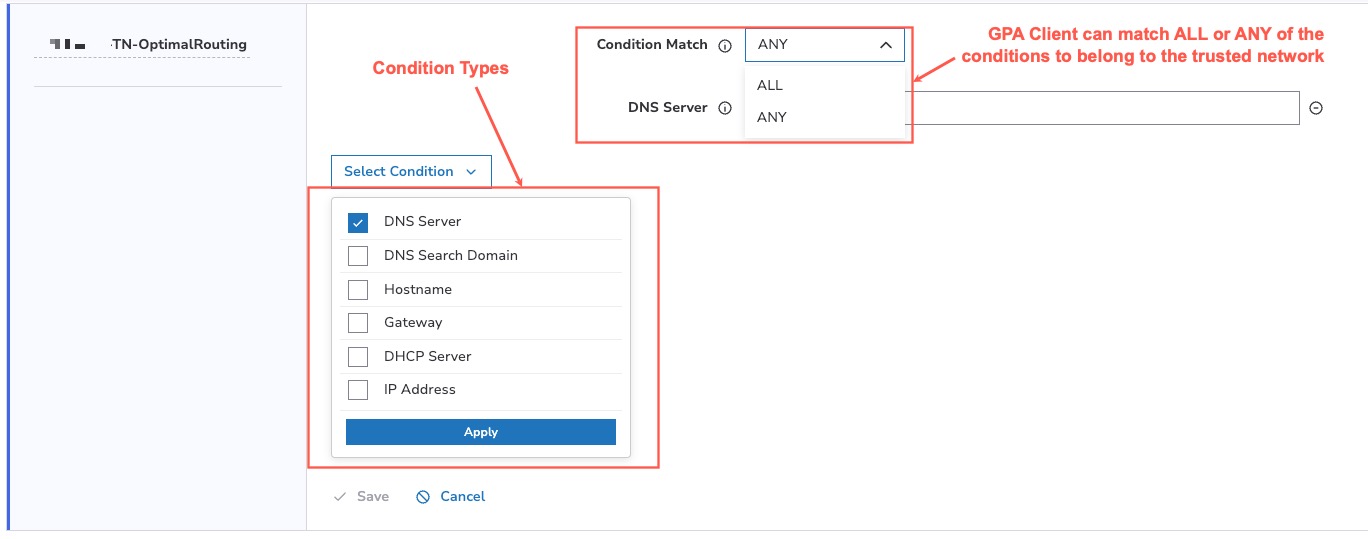
Trusted Network Conditions
The different types of conditions that are supported for trusted networks are:
| Condition Type | Description |
|---|---|
| DNS Server | Matches if the device is using a specific DNS server. |
| DNS Search Domain | Matches the local domain suffix. |
| Hostname | Matches specific hostname to a corresponding IP address. |
| Gateway | Matches the IP address of the local network’s default routing gateway. |
| DHCP Server | Matches if the IP address is the same as the DHCP server that assigns IP to the network. |
| IP Address | Matches if the IP address is within the specified range in CIDR notation. |
The GPA Client can be associated with zero, one, or more Trusted networks.
Here is an example where we the hostname client-team-demo should resolve to the IP address 10.20.30.40
Create a Trusted Network
Follow this procedure to create a trusted network:
- Log in to the Enterprise Center.
- Navigate to select Application Access > Clients & Connectors > Trusted Networks.
- Click Add Network.
- Add the conditions for your trusted network. See Trusted Network Conditions for more information.
- Click Save, to save the trusted network. Click Cancel, to cancel the changes.
- Click Edit (pencil icon), to edit the trusted network and make any changes.
- Click Delete (trash icon), to delete the trusted network.
Local POP Connector Pool
A Local POP Connector Pool is a connector pool strategically deployed within the private network, equipped with the capability to directly onboard traffic from on-premises GPA Clients.
Create an LPOP Connector Pool
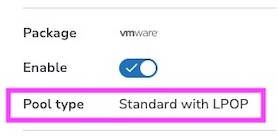
To create a LPOP (Local Point Of Presence) Connector Pool, follow the procedure in Create a Connector Pool. For Pool type select Standard with LPOP. When you save the connector pool, in the connector summary section on the right, it shows:
Optimal Routing Ruleset
Optimal Routing Ruleset is a set of rules that identify the preferred LPOP Connector Pool to route the application traffic when the GPA Client is detected to be on a Trusted Network.
The different configuration options for a Optimal Routing ruleset are:
When the GPA Client is in a specific trusted network you can use different routing mechanisms.
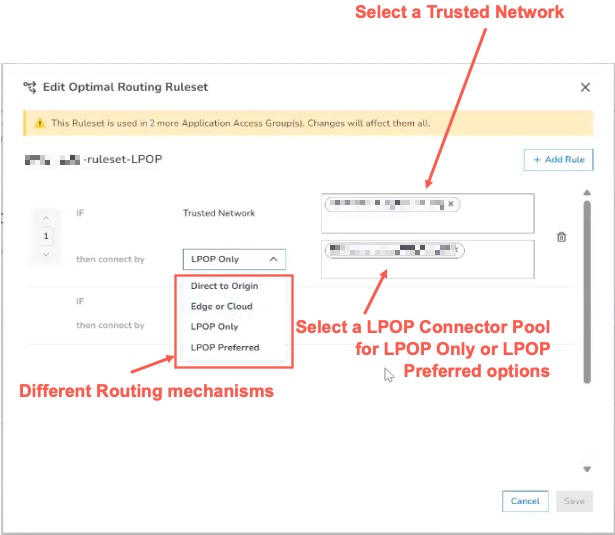
Here’s a description of the different routing mechanisms based on the routing mode selected for the GPA Client:
| Routing mechanism chosen when GPA Client is in a Trusted Network | Description |
|---|---|
| Direct to Origin | Application Traffic is sent directly to the origin server. |
| Edge or Cloud | Edge Transport Application traffic is routed via Akamai Edge. Hybrid Application traffic is routed via Akamai Edge first, and EAA Cloud is used as a fallback. |
| LPOP only | Application traffic is routed via the selected LPOP Connector Pool only. |
| LPOP Preferred | Application traffic is routed via the selected LPOP Connector Pool if available. If it is not available, application traffic is routed via Akamai Edge or EAA Cloud ( as a fallback) depending on the type of application. Edge Transport Application traffic is routed via Akamai Edge. Hybrid Application traffic is first routed via Akamai Edge, if not available, then it is routed via Akamai DPOP. |
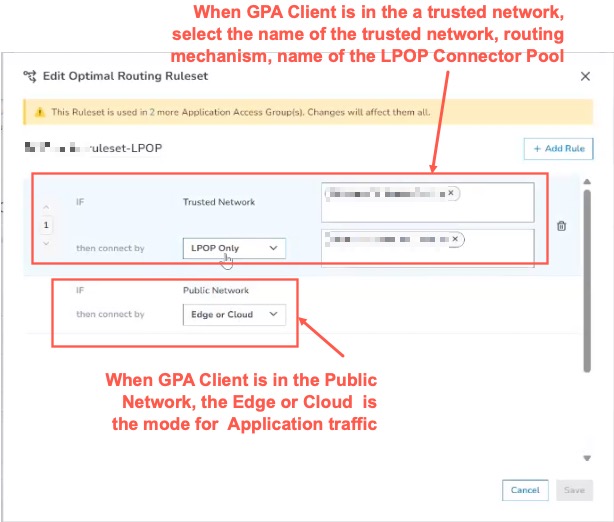
And when the GPA Client is in the public network (or internet and not in the trusted network) then it connects via the Edge or Cloud (Akamai Edge or EAA Cloud respectively), Edge-transport based Tunnel Applications use Akamai Edge, and Hybrid Applications use Akamai Edge first, and EAA Cloud is used as a fallback.
Here is an example of an optimal routing ruleset:
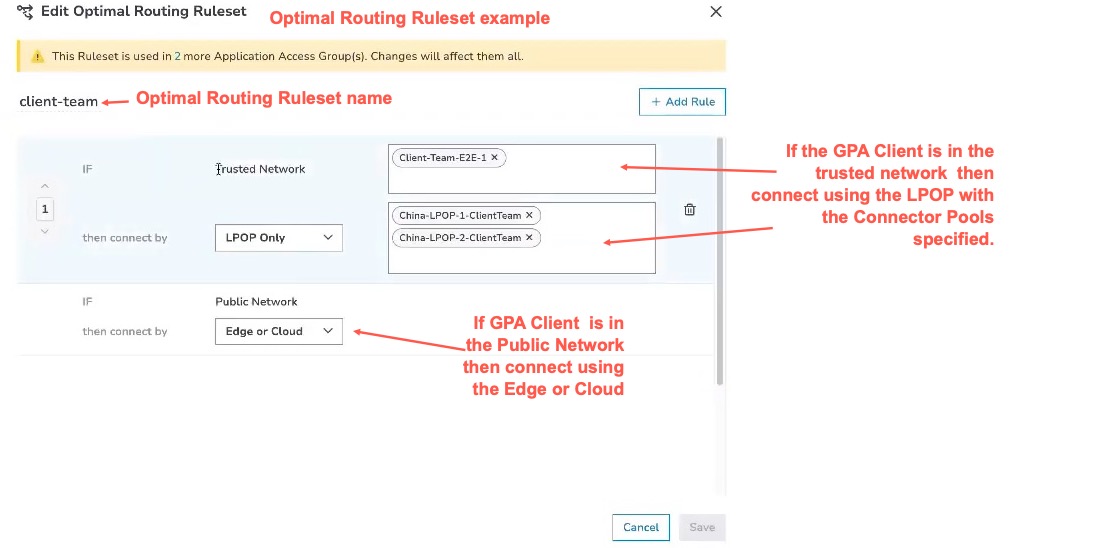
When the GPA Client is in the trusted network Client-Team-E2E-1, the connection is set to LPOP Only, so it connects using the LPOP Connector Pools China-LPOP-1-ClientTeam or China-LPOP-2-ClientTeam. When the GPA Client is in a public network, like the internet (and not within the trusted network), the connection is set to Edge or Cloud, Edge-transport based Tunnel Applications use Akamai Edge, and Hybrid Applications use Akamai Edge first, and EAA Cloud is used as a fallback.
Create an Optimal Routing Ruleset in AAG
Follow this procedure to create an optimal routing ruleset within an AAG.
- Log in to the Enterprise Center.
- Navigate to select Application Access > Applications > Application Access Groups.
- Select a Client-Access Application with Cloud Zone or Hybrid Transport type of AAG or Client-Access Application with Edge Transport for which you want to add the Optimal Routing Ruleset. See Types of AAG for more information on the types of applications that can be added to these types of AAG.
- Go to the Optimal Routing Ruleset tile inside the AAG Details page.
- You can create the optimal routing ruleset from two different places:
- From the Action menu (...) select Add new ruleset.
- From the Action menu (...) select Manage Rulesets, then select Create new ruleset.
- In the Add optimal Routing Ruleset window provide a Name. Click Next.
- Click Add Rule.
- Select the name of the trusted network and the routing mechanism of either Direct to Origin, Edge of Cloud, LPOP Only, or LPOP Preferred. Click Done. Select the LPOP Connector Pool that you configured above. When the GPA Client is in the trusted network, this connection mechanism is used. You can leave the default value of Edge or Cloud which is chosen when the GPA Client is in a public network.
- Click Save.
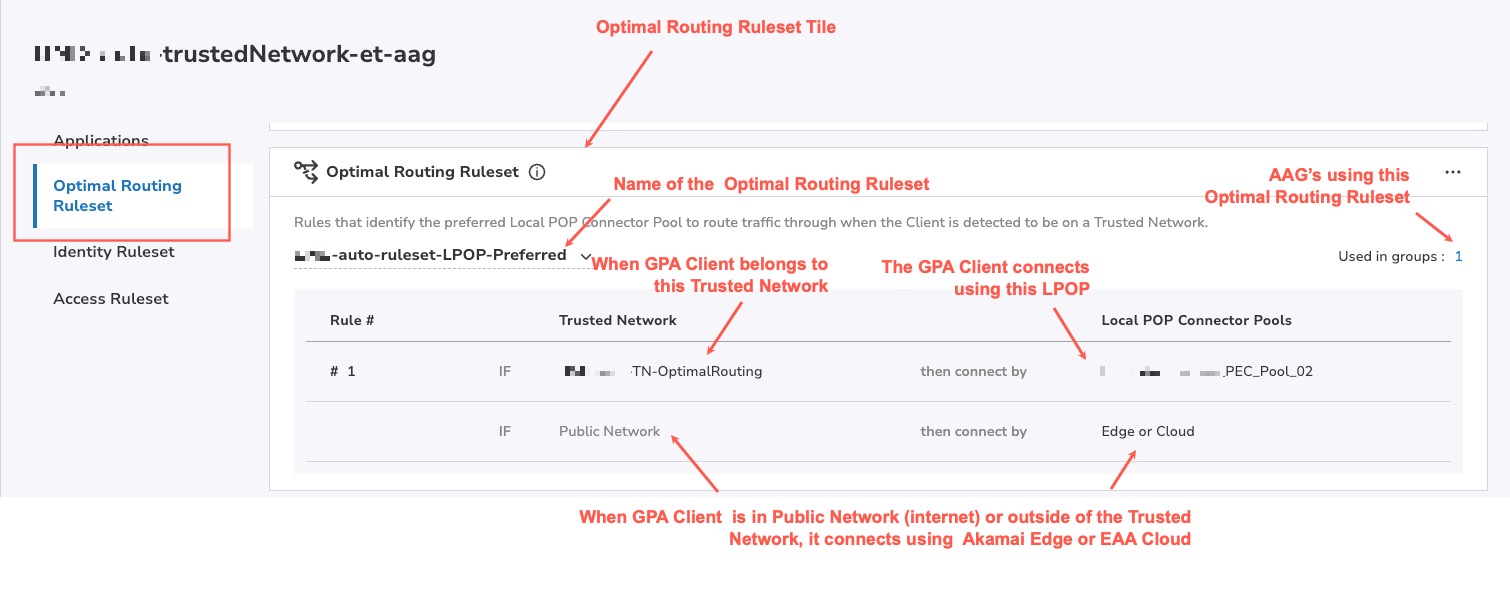
- After the Optimal Routing Ruleset is saved, it appears in the Optimal Routing Ruleset tile and shows which AAG groups use it.
Here's an example:
Workflow for configuring a Trusted Network for GPA Client for routing traffic for Edge Transport Applications
- Create an LPOP Connector Pool.
- Create a Registration Token.
- Register the token using Automatic Registration or Manual Registration and download the connector in your virtual environment. Activate the connector using the Unified Connector console in your virtual environment.
- Add the Edge Transport Destination CIDRs to a Standard Connector Pool or LPOP Connector Pool.
- Configure an Edge Transport enabled Tunnel Application and add it to AAG. The type of AAG you must use is Client-Access Application with Cloud Zone or Hybrid Transport.
- Create a Trusted Network and add the Trusted Network conditions.
- Add the Optimal Routing Ruleset to the AAG.
- Add the identity ruleset to the AAG.
- Click, Save and Deploy, to save and deploy the changes to the AAG. Provide a deploy confirmation message. Click Deploy.
Workflow for configuring a Trusted Network for GPA Client for routing traffic for Hybrid Applications
- Create a standard Connector Pool.
- Create a Registration Token.
- Register the token using Automatic Registration or Manual Registration and download the connector in your virtual environment. Activate the connector using the Unified Connector console in your virtual environment.
- Associate the Standard Connector Pool to the AAG.
- Configure a Hybrid Tunnel Application and add it to AAG. The type of AAG you must use is Client-Access Application with Cloud Zone or Hybrid Transport.
- Create an LPOP Connector Pool
- Create a Registration Token.
- Register the token using Automatic Registration or Manual Registration and download the connector in your virtual environment. Activate the connector using the Unified Connector console in your virtual environment.
- Create a Trusted Network and add trusted network conditions.
- Add the LPOP Connector Pool to the Optimal Routing Ruleset as a connection mechanism in the AAG when GPA Client is in the Trusted Network.
- Add the identity ruleset to the AAG.
- Click, Save and Deploy, to save and deploy the changes to the AAG. Provide a deploy confirmation message. Click Deploy.
Restrictions
- Trusted networks are not supported for Tunnel-type Client Access applications.
- It is optional to add Access Ruleset to the AAG. If you use Country as an option in the Access Ruleset, an error is generated if traffic is routed via the LPOP and works fine when routed via the Edge.
Updated about 2 hours ago