
IdP Router (Limited Availability)
Overview
Organizations use multiple Identity Providers with a diverse user base of employees, contractors, and partners to access the same application as shown below:
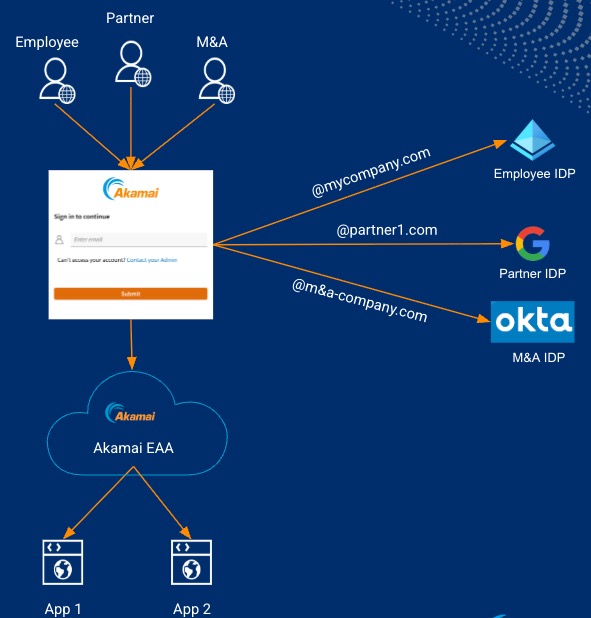
Currently, without the IdP Router feature, EAA only supports authentication to applications using a single IdP.
With the IdP Router, the end user can select from multiple IdPs to authenticate to EAA Clientless Applications, like web applications, RDP application, and SSH application. This enables multi-IdP access to a single business application in large organizations with a diverse user-base. This feature is not supported for Cliented Applications.
NoteThis feature is in limited-availability (LA) and can be enabled in your contract by contacting Akamai support.
End-user experience with IdP Router flow
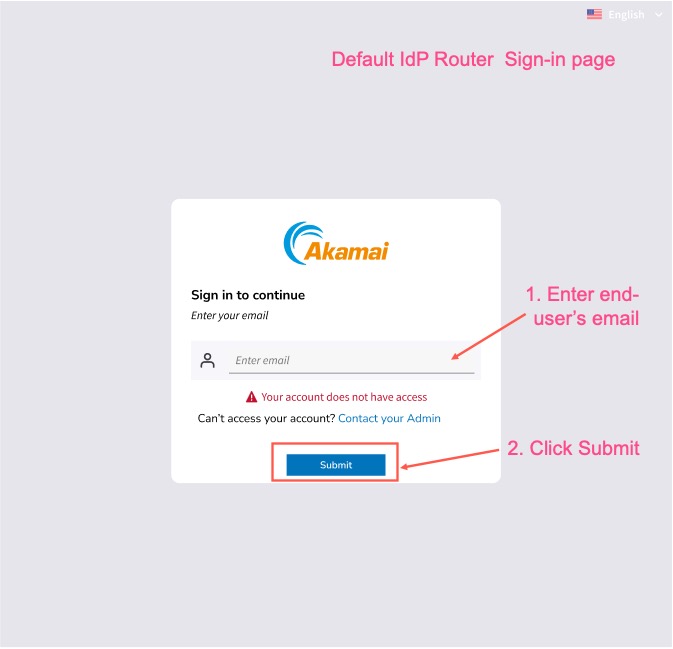
- The end-user’s authentication request lands on the IdP Router Sign In page. The end user enters their organization email and submits the request.
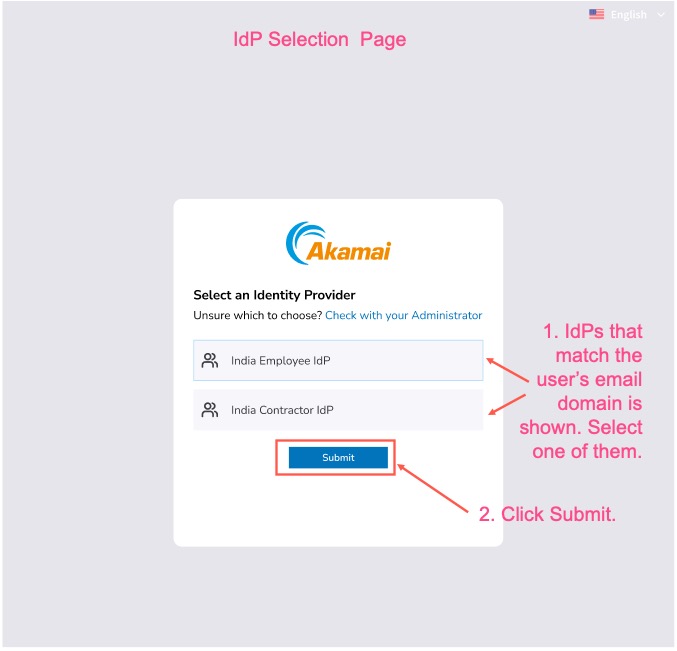
- A list of IdPs are shown based on the email domain. The end-user can select the IdP which they want to authenticate to. Then the end-user clicks Submit.
- The user is taken to the selected IdP’s Login portal page with the username pre-populated. The user then enters the password, and any additional MFA options.
- If authentication is successful, access is granted to the Clientless Application.
IdP Router Workflow
The workflow for using IdP router is as follows:
STEP 1: Configure and deploy an IdP Router.
STEP 2: Add routing rules for all IdPs that must be configured with the IdP Router.
STEP 3: Add multiple IdPs to the AAG’s Identity Ruleset.
Configure and deploy an IdP Router
An IdP Router provides an interface for the end-user to select an IdP when multiple IdPs are assigned to applications using an AAG.
-
Log in to Enterprise Center.
-
In the Enterprise Center navigation menu, select Application Access > Identity & Users > Identity Provider Router. The IdP Router Details page appears.
-
In the General Settings section for the Identity Server you can choose Use your domain or Use Akamai domain. Provide a URL for the domain. If you use your own domain, also provide a self-signed certificate, or upload a custom certificate for the Certificate Preference option.
-
For Akamai Cloud Zone, select the cloud zone that is close to your application.
-
Click Save, to save the changes.
-
Click the Customizations tab.
-
In the Settings section, upload the images for Logo and Favicon for the Sign In page and Select Identity Provider page. Also customize any of the URLs for the Sign In page and Select Identity Provider page.
-
Click the Texts section. You can choose the default primary language and save it. This is similar to Login Portal languages settings. Enter your customized texts for the Sign In page and Select Identity Provider page. This is similar to Login Portal UI text elements.
-
Click the Color Theme section. Select a theme, color for your background page, modal title and buttons to match your organization’s login portal to provide a similar look and uniformity. Configuration is similar to the customizations you have chosen for the login portal for your organization.
-
Click Save, to save the changes. A preview of all of your customizations is shown on the right.
-
Click the IdP Routing Rules tab. If you have already configured routing rules for your IdP, it is shown in the Configured section. If not, it is shown in the Not Configured section. Click on the name of the IdP in the Identity Provider column. The IdP Details page appears and you can add the routing rule. See Set up an IdP Routing Rule on how to add routing rules.
-
(Optional) Click History tab, to track the changes to general settings and customizations in different versions of the IdP Router.
-
Click Save and Deploy, to save and deploy the changes. Provide a deploy confirmation message, and click Deploy. When you hover over to the Deployment Summary section on the right, the Deployment Status shows IdP Router is deployed.
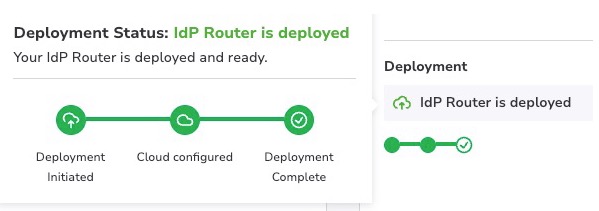
Note: If you click Save, to save the changes and don’t deploy the IdP Router, it will be in Draft state. Or, if you deploy the IdP router once, make further changes, and then save it, but not redeploy it, it will be in Draft state. If you try to add multiple IdPs to Clientless AAG, this banner message is shown:
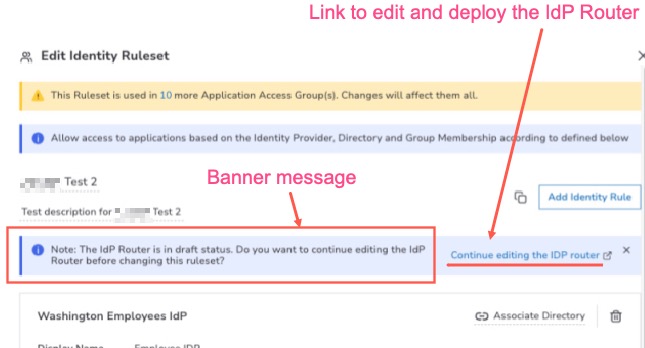
To resolve this issue, deploy the IdP router and then add the IdPs to the Identity Rulesets of the Clientless AAGs.
Routing Policy of IdP Router
The IdP Router uses a dynamic routing policy to decide which IdPs must be shown to the end-user based on the domain that’s present in the end-user’s email.
See these examples to understand the dynamic selection:
EXAMPLE 1:
If the end user enters the following email on IdP Router Sign-in page:
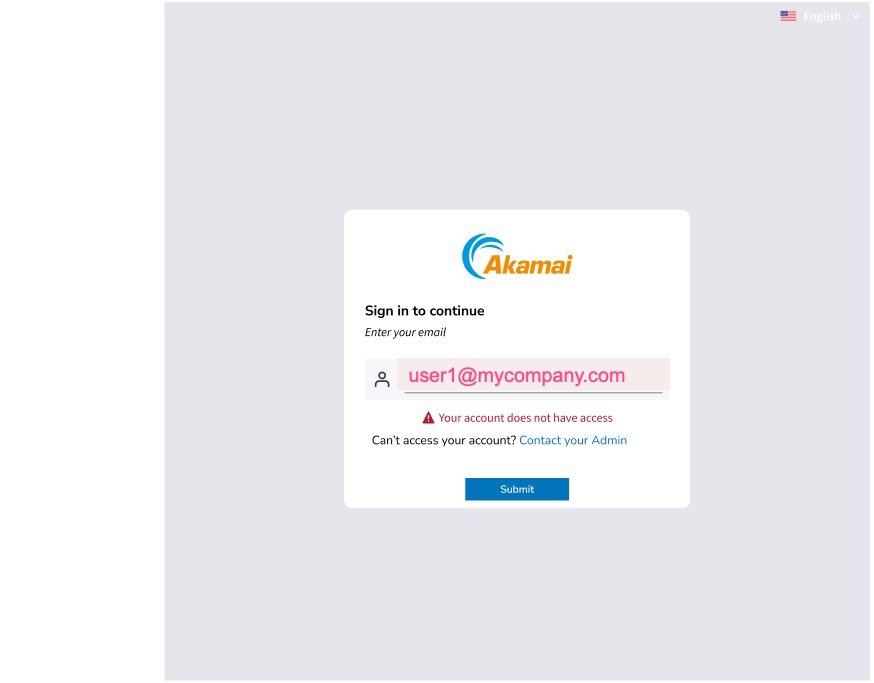
The user’s email has the domain, mycompany.com.
If you have a routing rule in IdP1 as:

And another routing rule in IdP2 as:

The end-user’s email is “user1@mycompany.com”. It matches the Email domains in the routing rule of IdP1 and IdP2. Therefore, the display names of both IdP1 and IdP2, India Employee IdP and India Contractor IdP are shown to the end-user in the IdP selection page:
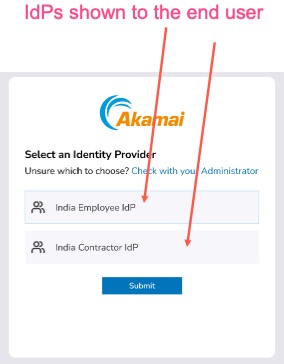
The end user can select the IdP of their choice. Then, the user is redirected to the IdP Login Portal of the selected IdP.
EXAMPLE 2:
If the end user enters the following email on IdP Router Sign-in page:
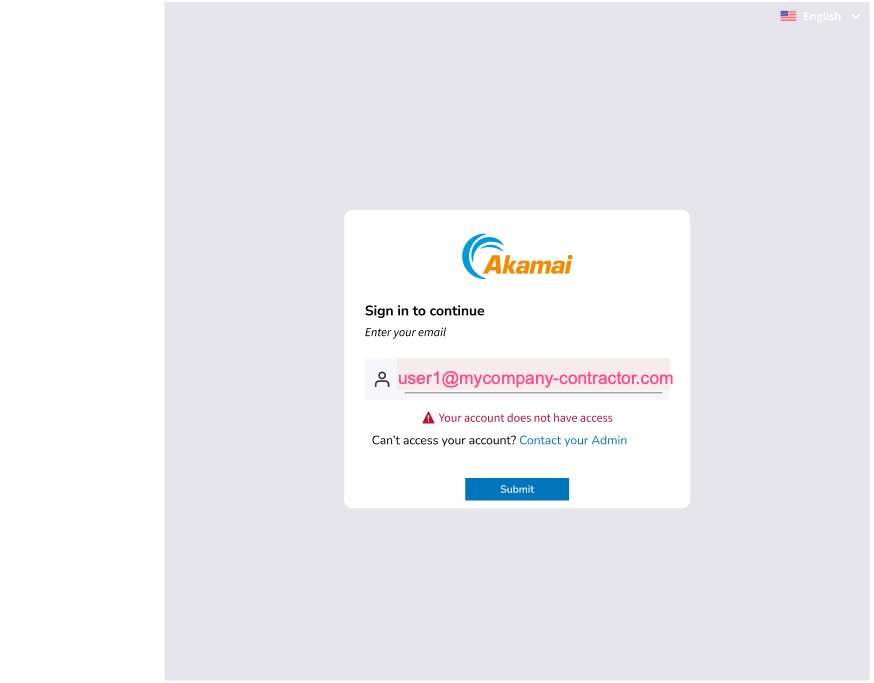
The domain is “mycompany-contractor.com” in the user’s email.
The only matching routing rule, is in IdP2:
Since there is only one IdP, India Contractor IdP, that matches the user’s domain, they are directed to the Login portal directly.
Set up a IdP Routing Rules for all identity providers
You can configure a routing rule for your IdP using this procedure.
-
Log in to Enterprise Center.
-
In the Enterprise Center navigation menu, select Application Access > Identity & Users > Identity Providers.
-
Select the IdP for which you want to add the routing rule. The IdP details page appears.
-
In the Settings tab, go to the Routing Rule section.
-
Provide a unique Display Name. This is the name of the IDP that is displayed on the IdP Selection page when the end user signs in.
-
Provide the Email domains. This is the list of domains that will be matched against the end user’s email domain that is entered in the IdP Sign-in page.
-
Click Save and Deploy, to deploy the changes. Provide a deploy confirmation message, and click Deploy.
-
Repeat the above steps and create routing rules for all of the IdPs that would want to add to the AAGs.
Add multiple IdPs to AAG’s Identity Ruleset
The IdP Router feature is only supported for Clientless Access Applications. Since Clientless Access Applications can only be associated with Clientless AAGs, multiple IdPs can be added to it. Multiple IdPs cannot be added to Cliented AAGs that have Cliented Applications. You can see more about the Types of AAGs.
Before you associate multiple IdPs to a Cliented AAGs, make sure you:
- Create and deploy an IdP Router.
Note: If you don’t create and deploy the IdP Router, the Add Identity Rule button is not shown. You will see a message:
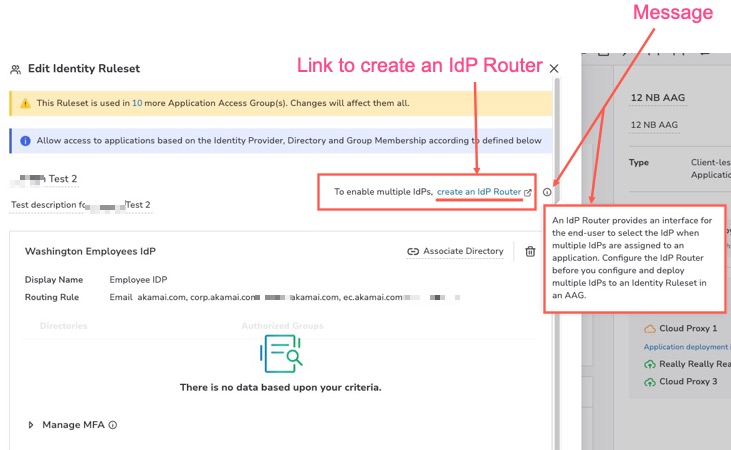
To resolve this issue, click the create an IdP Router link to create it. See Configure and deploy an IdP Router.
- Create routing rules for all the IdPs you want to associate with the Cliented AAG.
Note: If you create a new identity ruleset and try to add a new rule to an IdP without routing rules, you see the message when you click Add Identity Rule:
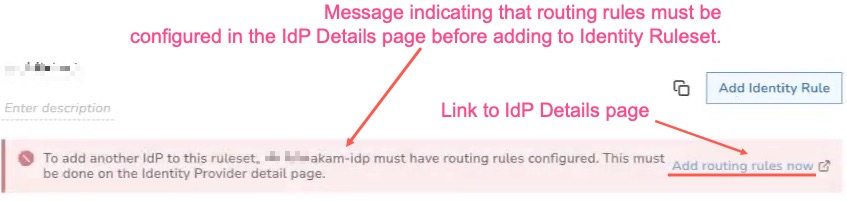
To resolve this issue, you can click on the link to the IdP Details page, to first add the routing rules.
After you have done the above two steps, you can add multiple IdPs to Clientless AAGs. To create an Identity Ruleset and add identity rules, see Create Identity Ruleset in AAG documentation. Add an Identity Ruleset for each IdP. All the IdPs that’s configured in the IdP Router must be added to the AAG.
Additional Notes:
Individual applications cannot override the AAG’s authentication rules specified in multiple Identity Rulesets of the AAG, within the Application’s Authentication tab. The override button has been removed. (Override authentication rules for any specific apps in the AAG is not allowed)
Updated about 2 hours ago