
Resize images using pristine image dimensions
Image and Video Manager lets you use originalWidth and originalHeight–the values for width and height of a pristine image–to proportionally resize an image. You can use them in policy variables, in the input to the ImQuery transformation, and in basic mathematical operations.
How it works
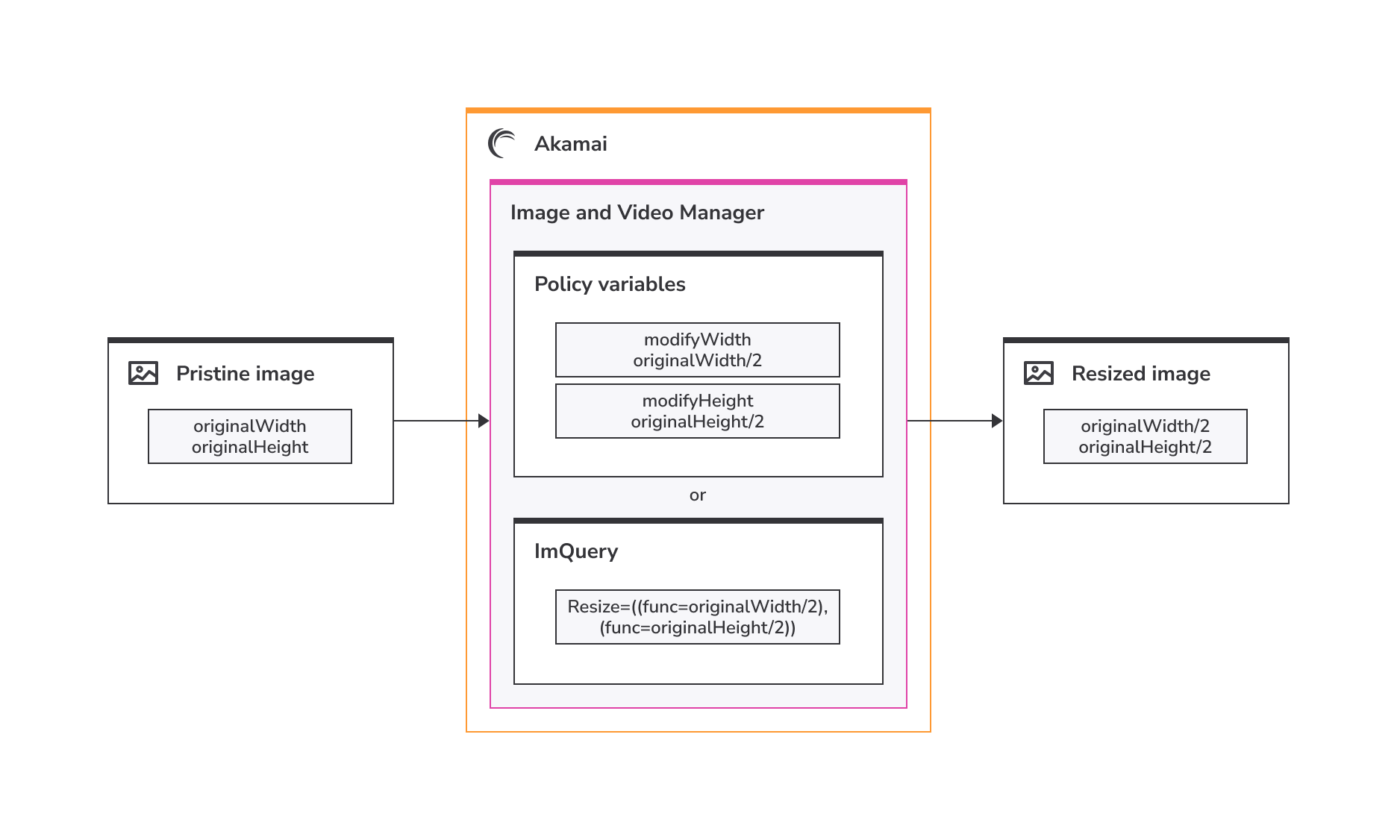
The originalWidth and originalHeight values are constants that Image and Video Manager extracts from an incoming image. These constants can be referenced in either policy variables or ImQuery strings to alter the outgoing size of the image based on the original values.
Policy variables
An example policy variable may look like this, where defaultValue is an algebraic expression referencing the originalWidth constant to determine the final outgoing image size:
{
  "name": "modifyWidth",
  "type": "number",
  "defaultValue": "-5+(originalWidth/4 -1)"
}
ImQuery
An example ImQuery string value using originalWidth and originalHeight may look like this, where /2 resizes both the width and height of the image to half their original size:
Resize=((func=originalWidth/2),(func=originalHeight/2))Get started
In Image and Video Manager, there are two ways you can use originalWidth and originalHeight to resize images: using policy variables or with the ImQuery transformation.
The examples in this guide for resizing images using pristine image dimensions are currently available using the IVM API.
Use policy variables
Use policy variables in conjunction with the Resize transformation to resize an image.
-
Use this policy JSON when you create a new policy or modify an existing policy. This adds a new Resize transformation that uses width and height variables. It also sets up new policy variables that define default values for width and height based on original pristine image dimensions. The labels for these variables determine the query string parameters that overwrite the default values. In the sample JSON below, the
widthandheightvariables are set to half of the pristine image’s original width and height. For example,originalWidth/2andoriginalHeight/2.{ "transformations": [ { "transformation": "Resize", "width": { "var": "width" }, "height": { "var": "height" } } ], "variables": [ { "name": "width", "type": "number", "defaultValue": "originalWidth/2" }, { "name": "height", "type": "number", "defaultValue": "originalHeight/2" } ] } -
After the policy is updated, requesting the following URL should return an image with half the original width and height of the original pristine image. Replace
example.comwith your URL andpath/to/file.pngwith the actual path and name for your image file:https://www.example.com/path/to/file.png -
To request a different variation, for example one-fifth (
originalWidth/5andoriginalHeight/5) of the original width and height, you can send the following example URL, once again replacingexample.comandpath/to/file.pngwith your actual URL, path, and file name:https://www.example.com/path/to/file.png?width=originalWidth/5&height=originalHeight/5
Use ImQuery
Create an ImQuery policy with the ImQuery transformation to resize an image.
-
Use this policy JSON when you create a new policy or modify an existing policy. This adds a new ImQuery transformation that uses an
imvariable along while allowing the Resize transformation. It defines theimvariable with a default value resizing the image to half the original width and height. For example,Resize=((func=originalWidth/2),(func=originalHeight/2)).{ "transformations": [ { "transformation": "ImQuery", "query": { "var": "im" }, "allowedTransformations": [ "Resize" ] } ], "postBreakpointTransformations": [], "variables": [ { "name": "im", "type": "string", "defaultValue": "Resize=((func=originalWidth/2),(func=originalHeight/2))" } ] } -
After the policy is updated, requesting the following URL should return an image with half the original
widthandheightof the original pristine image. Replaceexample.comwith your URL andpath/to/file.pngwith the actual path and name for your image file:https://www.example.com/path/to/file.png -
Once you’ve configured the imquery-resize policy to include the ImQuery transformation, you can control the size of your image by changing the ImQuery string parameter. For example, to change the size of the image to triple the width and height, append the ImQuery string parameter (such as
Resize=((func=originalWidth*3),(func=originalHeight*3))) to the image URL. In the example below,*3resizes the final image to three times the width and height of the pristine, original image:https://www.example.com/path/to/file.png?im=Resize=((func=originalWidth*3),(func=originalHeight*3))Your ImQuery string can include basic arithmetic expressions referencing both the
originalWidthandoriginalHeightconstants, including addition, subtraction, multiplication, and division.
Updated about 1 month ago