
Validate domain ownership and certificates
In the service hostname set workflow, domain control validation is the security handshake that proves you are authorized to direct traffic through Akamai and encrypt content for your brand.
The process is divided into two distinct technical requirements: domain ownership verification at the Akamai platform level and certificate validation at the Certificate Authority (CA) level.
Why do I need domain ownership validation?
Before serving traffic for a domain like example.com, Akamai needs to verify that you actually control it. This prevents domain hijacking, where a malicious actor might try to add your domain to their configuration to intercept your traffic or disrupt your services.
While you can verify ownership during this workflow, you can also validate domains in advance using Domain Ownership Manager. This allows you to complete the ownership validation process before configuring your service hostname sets in Delivery Manager
Why do I need certificate validation?
To issue a cryptographic identity that allows your users to establish a secure connection to your service hostnames, you need a valid SSL/TLS certificate. Certificate validation is the process where a Certificate Authority (CA) confirms you own and control the domain before they sign the certificate.
How to
- From the Control Center menu, click Content delivery > CDN > Delivery Manager.
- In the Workspaces page, click the workspace that contains the set you want to edit.
- Open service hostnames:
- Workspace level: Go to the Service hostnames tab within a workspace to view all of its service hostnames and sets.
- Environment level: Go to the Environments tab within a workspace and click the environment that contains the set you want to edit. Next, go to the Service hostnames tab to view only the sets routed to that environment.
- Click the banner warning about required validations.
- Select a method to verify your domain ownership.
While the DNS CNAME method lets you configure both domain ownership and certificate validation before you activate the service hostname set, the certificate validation process finalizes after that activation completes.
The DNS TXT and HTTP methods verify domain ownership before activation, but the system generates certificate validation tokens only after you activate the service hostname set.
- For DNS CNAME:
- Download all records. You can also copy records individually by clicking the icon in each row.
- From your DNS provider, add new CNAME records using the generated names. For a domain called
example.com, the record shouldbe_acme-challenge.example.com. Paste the value as the target. - The domain ownership validation needs to complete before you proceed. The system automatically checks status every few minutes, but you can instantly verify your domain at the platform level by clicking Check validations.
The certificate validation continues after you activate the service hostname set. - Once the Ownership status changes to Completed, click Close.
- Click the global Save at the top of the page.
- Activate the service hostname set. The certificate validation process finalizes after that activation completes. Check the table listing service hostnames for details on the certificate and domain statuses.
- For DNS TXT:
- Download DNS TXT records for domain ownership validation. You can also copy tokens individually in each row.
- Use the copied Ownership TXT record entries to add a new TXT record in your DNS provider. Include the
host,wildcard, ordomainpart, depending on the validation scope of your domain. For a domain calledexample.comand the DOMAIN validation scope, the record should be:_akamai-domain-challenge.example.com. - The domain ownership validation needs to complete before you proceed. The system automatically checks status every few minutes, but you can instantly verify your domain at the platform level by clicking Check validations.
The certificate validation continues after you activate the service hostname set. - Once the Ownership status changes to Completed, click Close.
- Click the global Save at the top of the page and activate the service hostname set.
- Once the service hostname set is active, click the shield icon to validate certificates.
- Download DNS TXT records for certificate validation. You can also copy tokens individually in each row.
- Use the copied Certificate TXT record entries to set up TXT records in your main DNS zone at the
_acme-challenge.<service_hostname>destination. - Check the table listing service hostnames for details on the certificate statuses.
- For HTTP:
- Download the HTTP tokens for domain ownership validation.
- Use the downloaded Ownership HTTP token entries to create a file containing a token and save it on your HTTP server at the provided URL.
- The domain ownership validation needs to complete before you proceed. The system automatically checks status every few minutes, but you can instantly verify your domain at the platform level by clicking Check validations.
The certificate validation continues after you activate the service hostname set. - Once the Ownership status changes to Completed, click Close.
- Click the global Save at the top of the page and activate the service hostname set.
- Once the service hostname set is active, click the shield icon to validate certificates.
- Download the HTTP tokens for domain ownership validation.
- Use the downloaded Certificate HTTP token entries to create a file containing a token and save it on your HTTP server at the provided URL.
- Check the table listing service hostnames for details on the certificate statuses.
Validation methods
The preferable validation method may vary depending on the complexity of your configuration.
DNS CNAME
The most popular and recommended validation method. Akamai generates a CNAME record that you copy to your DNS to automatically handle domain validation challenges and certificate renewal. For example, _acme-challenge.www.example.com CNAME ac.blah.www.example.com.validate-akdv.net.
Advantages:
- Creates the
_acme-challengeCNAME DNS record that lets you validate domains before activating. - Certificates renew automatically as long as the
\_acme-challengerecord in your DNS points to the provided target validation hostname. - Supports wildcard hostnames.
Constraints:
- You need a direct control over your DNS records.
DNS TXT
In this method, Akamai provides a validation token that you use to set up a TXT record in your main DNS zone at acme-challenge.<service_hostname>.
Advantages:
- Useful if you route traffic across more than one Content Delivery Network (CDN) and want to manage domain validation through multiple TXT records in your DNS. This ensures that Certificate Authority (CA) validation requests succeed regardless of which CDN the hostname resolves to at any given moment.
- Supports wildcard hostnames.
Constraints:
- While domain ownership validation completes prior to activation, certificate validation tokens are generated only after you activate the service hostname set.
- You need to manually obtain the new tokens from Akamai and add them to your DNS zone before the certificate expires. Failing to do so can result in certificate expiration and a subsequent denial of service.
- Tokens are valid only for a limited number of days. Once a token expires, Akamai fetches a new one from the CA. If a token expires before you can deploy it, you can manually generate a fresh token by clicking the button next to the expiration date.
- Difficult to automate if your DNS provider doesn't offer an API.
HTTP
You create a file containing a token and save it on your origin server at the provided URL.
Example of the plain text file with a token:

Advantages:
- Useful for SaaS/PaaS/IaaS providers without direct access to DNS zones.
- Useful if you route traffic across more than one Content Delivery Network (CDN). In this Multi-CDN scenario, you need to manage domain validation through files on the origin server. This ensures that Certificate Authority (CA) validation requests succeed regardless of which CDN the hostname resolves to at any given moment.
- Easy to automate.
Constraints:
- While domain ownership validation completes prior to activation, certificate validation tokens are generated only after you activate the service hostname set.
- You need to manually obtain the new tokens from Akamai and add them to a file on your origin server before the certificate expires. Failing to do so can result in certificate expiration and a subsequent denial of service.
- Tokens are valid only for a limited number of days. Once a token expires, Akamai fetches a new one from the CA. If a token expires before you can deploy it, you can manually generate a fresh token by clicking the button next to the expiration date.
- Doesn't support wildcard hostnames.
- Only works on port 80.
- If you use multiple web servers, each one needs to host the file with the challenge.
Certificate renewal
The renewal process starts automatically 20 days before the certificate's 90 day lifecycle ends.
Certificates that use the Auto DNS domain validation method will renew automatically as long as the _acme-challenge record in your DNS points to the provided target validation hostname.
Certificates on Standard TLS need the Auto Domain Validation behavior in your environment's rule sets.
If you’re using DNS TXT or HTTP validation methods, you need to manually obtain the new tokens from Akamai and add them to your DNS zone or a file on your origin server before the certificate expires. Otherwise, you risk the hostname’s certificate expiring, and a denial of service.
Certificate notifications
After you activate the service hostname set, you start getting notified about certificate lifecycle events through Akamai and email or Slack channel.
You get notified when:
- A new certificate has been successfully activated.
- A new certificate has failed to activate.
- A certificate has been automatically renewed.
- A certificate failed to renew automatically.
- A certificate expires soon and failed to renew automatically. You’ll start receiving this high priority warning 30 days before the expiration date.
- A certificate has already expired.
- A certificate is deleted 30 days after it expired.
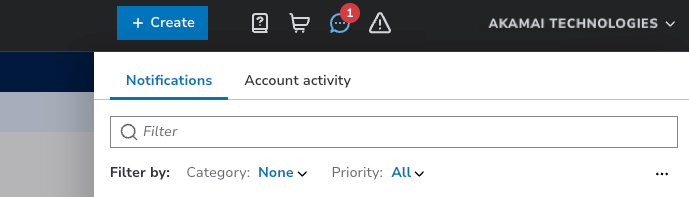
Notifications panel in Control Center
Configure a notification channel
Apart from getting notifications in Control Center, you can set up a notification channel in Identity and Access Management. Refer to the Identity and Access documentation for step by step instructions.
For certificate-specific notifications, make sure to select these settings while configuring email or Slack channels:
- In the Notification type section, in the Escalation notifications tab, select All.
- In the Application notifications tab, select Cloud Certificate Manager.
Updated about 1 month ago