
Method 2: Many to one
This method uses Media delivery type to optimize the delivery of multiple media formats–video on-demand, live, or event–using a single AMD property configuration. The example in this guide uses the video on-demand (VOD) and live (LIVE) content types, but event (EVENT) can be also be used.
Before you begin
This method uses the Mixed Mode Configuration (MMC) feature. You should familiarize yourself with MMC and how it's applied. MMC must be added to your contract before you can use it. Contact your account representative for more information.
Step 1: Create the first edge hostname for VOD
This example creates a new property configuration for AMD and defines multiple property hostname to edge hostname associations. The first enables VOD as its segmented media mode.
-
From the Edit dashboard of your AMD property, navigate to Property Hostnames.
-
Click +Hostnames, and select Add Hostname(s).
-
Add your hostname, for example
vod.example.com, and click Next. -
In the Domain and Certificate Security step, choose your certificate details, and click Next.
-
In the Mapping Solution step, ensure Media delivery type is selected.
-
In the Segmented media mode dropdown, select VOD from the available options:
VOD,LIVE, orEVENT.If you also have Edge IP Binding on your contract, it's revealed here, too. You can't use both mapping solutions in the same property hostname.
-
Click Next.
-
In the Edge Hostnames step, review your generated edge hostname details. Verify that
VODhas been applied as the Delivery Optimization. -
Click Submit.
The edge hostname used by your new hostname has been configured to use an optimal edge map for delivery of video on-demand (VOD) content.
Step 2: Create the second edge hostname for LIVE
Repeat the same process illustrated in Step 1. When you reach the Mapping Solution step of the wizard, ensure Media delivery type is selected, and set Segmented media mode to LIVE. This example uses live.example.com for the second property hostname.
Step 3: Set up the Default Rule for LIVE
Next, implement MMC to apply use case-based behaviors in separate rules. This step configures the Default Rule for requests to the "Live" use case edge hostname.
Property Manager automatically includes the Segmented Media Delivery Mode behavior in the Default Rule as a "use case-based behavior." To sync with the Media delivery type settings for the LIVE edge hostname, set this to Live.
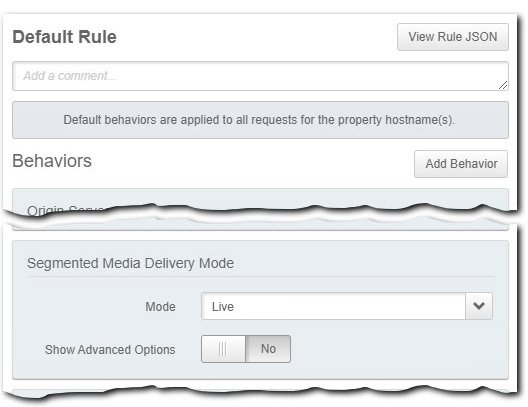
Apply these additional required and optional settings in your Default Rule:
- Advanced Options. With Live set as the Segmented Media Delivery Mode, additional options are available with the Show Advanced Options slider. You can accomplish live media delivery with Media Services Live (MSL), and use these options when configuring it with AMD. They are discussed in the Media Services Live user documentation.
These options only apply to the use of Akamai's Media Services Live product with AMD. They can't be used with your own custom live media configuration.
- The Origin Server behavior. In this behavior, select Media Services Live as the Origin Type. You also need to set up a new live stream using MSL outside of Property Manager. Both of these are also covered in the Media Services Live 4.x User Guide.
- Other behaviors in the Default Rule. Review your behavior settings in the Default Rule and all subsequent rules. Remember that any behavior applied in the Default Rule applies to all requests. This means that if you haven't set the same behavior in another rule, what's set for it here is applied.
Step 4: Set up a new rule for VOD
After configuring an edge hostname and your Default Rule for the LIVE media mode, set up a subsequent rule to field requests for your VOD edge hostname. Rule precedence in your rule configuration dictates that Property Manager applies a lower rule in the list first, and its settings override any matching settings in a rule higher in the list. This means that any requests to the VOD mode edge hostname will:
-
Read the VOD rule and apply its settings first for on-demand delivery.
-
Read the Default Rule and apply any additional settings you've set that weren't set in the VOD rule. This occurs because the Default Rule applies to all requests.
Follow these steps to set up a rule for VOD:
-
In your Property Configuration Settings, click Add Rule.
-
Select Blank Rule Template. Enter a name for the new rule, for example, "VOD Media Delivery Rule", and click Insert Rule.
-
Find and select your new rule in your rule list. Click Add Match, and set the fields as follows:
Hostnameis one of- Select Items. Click this field and input the Property Hostname you associated with the VOD mode edge hostname. For example,
vod.example.com.
-
Click Add Behavior.
-
In the Search available behaviors field, search for and select Segmented Media Delivery Mode, and click Insert Behavior. Set Mode to On demand.
-
Since the Default Rule sets “Media Services Live” as its origin, you need to add another behavior to set up your origin server configuration for on-demand content. Click Add Behavior. Search for and select Origin Server, and click Insert Behavior. Set the options for Origin Server as follows:
- Origin Type: Select NetStorage for this example.
- NetStorage Account: Click to select the NetStorage account associated with the Storage Group that houses the on-demand content to be delivered.
-
Add more behaviors as needed, including use case-based ones with support for MMC. These include Origin Characteristics, Content Characteristics, and Client Characteristics, as well as other recommended and optional behaviors. When a request for on-demand content is received, what you set in these behaviors overrides what's set in the Default Rule for these same behaviors.
-
When you’re ready, save your property configuration by clicking Save.
What's next?
Once you've completed and saved your configuration:
-
Activate on the Staging network, and test.
-
Activate on the Production network, and go live. At this phase, update your DNS record to redirect (CNAME) your property hostname for live and on-demand requests to the applicable edge hostname you created:
-
Akamai optimizes requests to the property hostname for live content to the LIVE mode edge map. Requests also ignore the "On demand Media Delivery Rule" and apply settings defined in the Default Rule.
-
Akamai optimizes requests to the property hostname for on-demand content to the VOD mode edge map. Requests also trigger the "On demand Media Delivery Rule" and use behaviors applied in it. Property Manager also applies any additional, applicable behaviors set in the Default Rule.
-
Updated 20 days ago