
Secure your Akamai Function
This tutorial shows you how to secure your Akamai Function by validating the traffic flow into the Function from the Akamai CDN. To do this we'll restrict calls into the Akamai Function to properties that you control.
When you deploy an Akamai Function, the platform automatically generates a public URL using the format,{UUID}.fwf.app. Although Akamai's default platform defenses will protect your Function from typical hacking attempts, it will not prevent it from being called by this URL directly.
As a best practice you should front the URL with your own Akamai property by using the Functions origin type in the Origin Server behavior. This lets you add your own security measures in front of the Function such as Akamai Web Application Firewall and Bot Manager. However, even with this setup, if an attacker obtains the {UUID}.fwf.app URL they can still call it directly, potentially causing increased usage and costs or information leakage. This is what the method explained in this tutorial aims to prevent.
To learn about how to ensure that traffic arriving at the origin endpoint came from your trusted Akamai Function, go to Secure traffic to origin in this topic.
Request signing at the edge
To make sure that your Function can only be called from a property that you control, we'll set up custom request signing and authentication.
This workflow will generate a per-request AF-Verification-Token HTTP header, which is signed with a pre-shared secret known only to your property and the Function. Your Function can then validate the header’s value and discard the request if it's not properly signed or absent.
The format of the verification token is: [timestamp]-[secret-id]-[random-number]-[hash]
[hash]is a SHA256-HMAC of[timestamp]-[secret-id]-[random-number].- The
hashis generated using the shared secret,[secret]. - The
[secret-id]is included to support key rotation. - An example of a verification token is:
1748898524-35a4-57533-ylTbN1WW0b8/T2JJcZ2g+Cti6cOLTm/p28cD9M3Yf+Q=
Generate the verification token at the Edge
You will note from the example above that the actual shared secret itself is not present in the token. It is only known inside the CDN property and the Akamai Function.
-
To generate the verification token at the Edge, we'll create three custom PMUSER variables with the security level “sensitive”.
- PMUSER_FVT_SECRET (aka "current secret") - A 64-character (32 byte) hexadecimal string. This is the symmetric secret used to verify the token.
- PMUSER_FVT_SECRET_ID (aka "current secret-id") - The name you select for the above key. This value cannot contain dashes.
- PMUSER_FVT_VALUE (aka “current token”) - This variable will hold the constructed token so it can be sent to the Function in an HTTP request header.
-
To generate an adequate value for the SECRET, you can choose any sufficiently random generator or the Akamai-provided option available at, https://debug.akamai.com/generate/key.
-
Once these variables are defined, reach out to your Akamai representative to add the following Advanced Metadata you need to generate the token value.
   <!----
This metadata requires the existence of three separate PMUSER variables:

PMUSER_FVT_SECRET - a 64-character hexadecimal string used to generate the token.
PMUSER_FVT_SECRET_ID - a 'name' for the above key, e.g. "my_cool_key1"  used to generate the token. This value must not contain dashes.
PMUSER_FVT_VALUE - the variable into which the token is generated.
-->

<!-- Generate random number -->

<assign:variable>
    <name>FVT_CRT_RAND</name>
    <transform>
        <rand>
            <min>1</min>
            <max>65535</max>
        </rand>
    </transform>
    <hidden>on</hidden>
</assign:variable>

<!-- Set initial value as "[time]-[secret-id]-[rand]" -->

<assign:variable>
    <name>FVT_CRT_VALUE</name>
    <value>%(AK_CURRENT_TIME)-%(PMUSER_FVT_SECRET_ID)-%(FVT_CRT_RAND)</value>
    <hidden>on</hidden>
</assign:variable>

<!-- Create SHA256-HMAC of value using key -->

<assign:variable>
    <name>FVT_CRT_HASH</name>
    <value>%(FVT_CRT_VALUE)</value>
    <transform>
        <hmac>
            <algorithm>SHA256</algorithm>
            <key>%(PMUSER_FVT_SECRET)</key>
        </hmac>
    </transform>
    <hidden>on</hidden>
</assign:variable>

<!-- Copy token value to PMUSER variable -->

<assign:variable>
    <name>PMUSER_FVT_VALUE</name>
    <value>%(FVT_CRT_VALUE)-%(FVT_CRT_HASH)</value>
</assign:variable>

<!-- Delete temporary variables after use -->

<assign:variable-delete>FVT_CRT_RAND</assign:variable-delete>
<assign:variable-delete>FVT_CRT_VALUE</assign:variable-delete>
<assign:variable-delete>FVT_CRT_HASH</assign:variable-delete>
You cannot add Advanced Metadata in your property yourself. You need to reach out to your account representative to do it for you.
Send the verification token in a forward request header
Now that the token is available in the PMUSER_FVT_VALUE variable, we can send it to the Akamai Function in an HTTP request header.
For this, we can configure the Modify Outgoing Request Header behavior as follows.
| Field | Value |
|---|---|
| Action | Modify |
| Select header name | Other |
| Custom Header Name | AF-Verification-Token |
| Header Value | {{user.PMUSER_FVT_VALUE}} |
| Avoid Duplicate Headers | Yes |
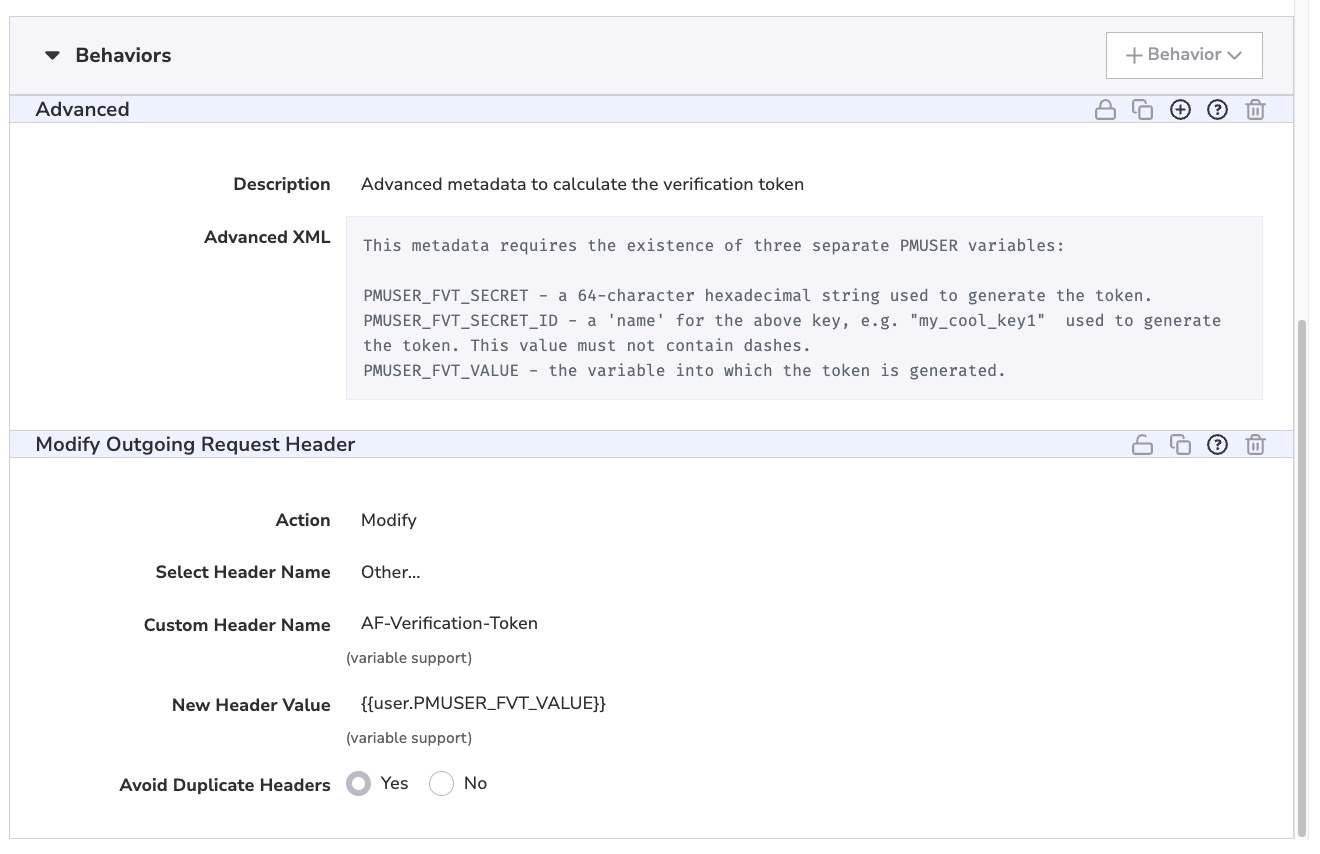
After the next step (deploying our Function), we'll make sure that these two behaviors, Advanced and Modify Outgoing Request Header, are in the same scope as (and applied to) the Origin Server behavior that is configured with your Akamai Function as the origin.
As an alternative, you can call the Function from an Akamai EdgeWorker. To do this, you need to retrieve the token value in the EdgeWorkers code and then set the header programmatically.
// pseudocode
var token = request.getVariable("PMUSER_FVT_VALUE");
request.setHeader("AF-Verification-Token", token);
Validate the verification token in the Function
At this point, the Akamai Edge server adds the AF-Verification-Token header to each outgoing request to the Function. In the Function’s request handler, we can decrypt the header’s value to see if it was signed with the correct shared secret.
- Pass the secret value and secret ID to our Spin application using Spin Variables. These variables are encrypted by default on the platform and can be explicitly marked as holding secrets, so they are safe to pass our sensitive information into. First, we need to define the expected variables in our
spin.tomlfile and link them to our component that will use them.
[variables]
fvt_secret = { required = true, secret = true }
fvt_secret_id = { required = true }

[component.my-secure-component.variables]
fvt_secret = "{{ fvt_secret }}"
fvt_secret_id = "{{ fvt_secret_id }}"- Now we can use them from inside our code to verify the
AF-Verification-Tokenin the Function.
Below are basic code examples for TypeScript and Rust. This code shows the overall concept and proper token validation method. Your actual production code should include logic to check for proper header format etc. It would also make sense to implement this as HTTP Middleware in the latest Spin versions.
import * as variables from '@spinframework/spin-variables';

async function handleRequest(request: Request): Promise<Response> {

  const token = request.headers.get('AF-Verification-Token') ?? '';
  const [timestamp, secretId, random, hash] = token.split('-');

  const secret = variables.get('fvt_secret');
  if (!secret || secretId !== variables.get('fvt_secret_id'))
    return new Response('Forbidden', { status: 403 });

  const encoder = new TextEncoder();
  const key = await crypto.subtle.importKey('raw', encoder.encode(secret), { name: 'HMAC', hash: 'SHA-256' }, false, ['verify']);

  const signature = Uint8Array.from(atob(hash), (c) => c.charCodeAt(0));
  const valid = await crypto.subtle.verify('HMAC', key, signature, encoder.encode(`${timestamp}-${secretId}-${random}`));

  if (!valid)
    return new Response('Forbidden', { status: 403 });

  return new Response('Hello, verified caller!');
- With the code in place, we can pass concrete values for the secret variables using the
--variableCLI parameter tospin uporspin aka deploy.
spin aka deploy
--variable fvt_secret=30a9c75577e68744078d7acb574955c43b3f0e740d03461ae2082c0edfd21286
--variable fvt_secret_id=secret_nr_95- Now, make sure your deployed function (at the newly generated
{UUID}.fwf.appURL fromspin aka deploy) is configured as the Origin for the code path that generates the verification token. The flow should now work. With the code above, you should see “Hello, verified caller” when calling through your CDN property, but receive a403 Forbiddenwhen calling the{UUID}.fwf.appURL directly.
Rotate secrets
As a security best practice, we'll periodically rotate the secrets. However, since the CDN property and Akamai Functions both employ different deployment pipelines and durations, we do not want to update the secrets in both environments at the same time.
The Function secrets will always be updated first. It will validate tokens using the old secrets for a short period of time during the CDN property update.
- Define the current secret, the previous secret, and the deployment time of the current version in the
spin.tomlfile.
[variables]
fvt_secret = { required = true, secret = true }
fvt_secret_id = { required = true }
fvt_prev_secret = { default = "", secret = true }
fvt_prev_secret_id = { default = "" }
fvt_deploy_time = { default = "" }

[component.my-secure-component.variables]
fvt_secret = "{{ fvt_secret }}"
fvt_secret_id = "{{ fvt_secret_id }}"
fvt_prev_secret = "{{ fvt_prev_secret }}"
fvt_prev_secret_id = "{{ fvt_prev_secret_id }}"
fvt_deploy_time = "{{ fvt_deploy_time }}"
Your code can then use fvt_prev_secret to try to verify the token if the token contains thefvt_prev_secret_id or if the current verification fails. This option is only available during a pre-defined grace period, for example, if there's a maximum of 30 minutes between the current timestamp at execution time and the timestamp in the fvt_deploy_time Spin variable.
Once you deploy the new Function version with the new secret, we can safely update the CDN property by setting the new values for the PMUSER_FVT_SECRET and PMUSER_FVT_SECRET_ID variables and enable them in production. During this rollout the Function will still accept the older values for 30 minutes. After 30 minutes it will gracefully switch to using only the newer values.
Secret rotation example
For this example we'll use a deployment with the following values live in production on the CDN.
- **PMUSER_FVT_SECRET** = 30a9c75577e68744078d7acb574955c43b3f0e740d03461ae2082c0edfd21286
- **PMUSER_FVT_SECRET_ID** = secret_nr_95
Follow the steps below to update the secrets.
- Generate a new SECRET (a455085783e634d4f6133ac36f90f22817ca07b09dd43f40bdecae5bf2bca3ca) and SECRET_ID (secret_nr_96)
- Deploy a new version of your Akamai Function and pass the Spin variables below.
spin aka deploy
--variable fvt_secret=a455085783e634d4f6133ac36f90f22817ca07b09dd43f40bdecae5bf2bca3ca
--variable fvt_secret_id=secret_nr_96
--variable fvt_prev_secret=30a9c75577e68744078d7acb574955c43b3f0e740d03461ae2082c0edfd21286
--variable fvt_prev_secret_id=secret_nr_95
--variable fvt_deploy_time=2026-11-10T23:55:44Z- Wait until the new Function version is fully deployed and actively accepting traffic.
The Function currently still validates tokens using the fvt_prev_secret.
-
Update the Akamai CDN property with new values for the PMUSER variables:
- PMUSER_FVT_SECRET = a455085783e634d4f6133ac36f90f22817ca07b09dd43f40bdecae5bf2bca3ca
- PMUSER_FVT_SECRET_ID = secret_nr_96
-
Activate the new property version in staging or directly into production (within 30 minutes).
You have successfully rotated the secrets for the verification token!
Secure traffic to origin
The tutorial above validates traffic as it flows from the Akamai CDN into your Function. It does not verify the second potential leg of the journey as traffic from the Function arrives at your origin endpoint. You can use one of the following options to ensure this traffic also comes from your trusted Akamai Function.
- Implement your own authorization and authentication layer. You can distribute API access tokens with the Function as encrypted Spin variables.
- Re-use the general method above. You can either pass the
AF-Verification-Tokenheader in all sub-requests your Function makes to your origin (and check the hash there again), or you can implement the same setup but configure it differently between the Function and the origin with separate secrets. - Allowlist a trusted range of Akamai-controlled IP addresses on your origin firewall. This is a common setup for the Akamai CDN, for example, using the Site Shield or Origin IP Access Control Lists behaviors. It does not currently work well for Akamai Functions since the platform is deployed on the Akamai Cloud and can use any IP address in the Cloud’s considerable range. As such, you would have to allowlist the entirety of the Akamai Cloud, severely weakening this approach.
- As an alternative you can send your origin traffic via the CDN first via an Akamai property (instead of to the origin directly). With that setup, the request would once again be seen as coming from the Akamai CDN, and Site Shield or Origin IP Access Control logic can be used. This approach can, however, have severe latency and scalability issues when used at large scale, so consult your Akamai account team before proceeding with this setup.
- Use mutual TLS (mTLS) certificates. While Functions uses mTLS internally to ensure only Akamai properties can call the Functions backend, we do not currently expose this option to customers for securing Function-to-origin traffic. If your use case is restricted by this limitation, reach out to your account team to provide feedback and help us steer the product roadmap.
Updated 36 minutes ago