---
updatedAt: 2026-10-13T16:41:20.000Z
agentTools:
siteIndex: https://techdocs.akamai.com/llms.txt
projectIndex: https://techdocs.akamai.com/cloud-computing/llms.txt
---
# Lifecycle policies
Deleting a few objects in an Object Storage bucket doesn't take too long. But, when the objects number in the thousands or even millions, delete operations can easily become unmanageable. When deleting a substantial amount of objects, you should use *lifecycle policies*.
A policy is an XML-format set of rules that you apply to a specific bucket. It governs the management of objects after they've reached a certain age. For example, you can create a lifecycle policy that deletes objects once a week, or every thirty days. You can apply a lifecycle policy to handle bucket objects that have become outdated, such as when collecting activity logs.
# When policies are enforced
Lifecycle policies are triggered at midnight, in the Object Storage bucket's local time. If you set a lifecycle policy of *one day*, objects are deleted the midnight *after* they reach 24 hours old. For example, assume you created an object at 5:00 PM on January 1. It will reach 24 hours in age at 5:00 PM *on January 2*. As a result, Object Storage enforces your policy on the object at 12:00 AM *on January 3*.
> 📘
>
> A lifecycle policy may not delete all of the files in a bucket, the first time it's triggered. This is especially true for buckets with upwards of a million objects. In cases like these, *most* of the objects are deleted, and any remaining objects are typically deleted during the next iteration of the lifecycle policy's rules.
# Create a lifecycle policy
Here's how to create lifecycle policies, using various tools:
[s3cmd](https://s3tools.org/s3cmd) lets you set and manage lifecycle policies from the command line. Here, we cover how to create and manage lifecycle policies to delete:
- Objects
- Previous versions of objects
- Failed multipart uploads
> 📘
>
> If you don't have s3cmd set up on your computer, see [Using s3cmd with Object Storage](https://techdocs.akamai.com/cloud-computing/docs/using-s3cmd-with-object-storage).
## Create the policy file
Use your preferred text editor to create an XML file to serve as your policy file. Consider the following lifecycle policy file as a template:
```xml lifecycle_policy.xml
delete-all-objects
Enabled
1
```
This deletes all objects in the bucket after one day. Each lifecycle policy file needs a `LifecycleConfiguration` block and a nested `Rule` block. The `Rule` block needs to contain `Prefix` and `Status`, and at least one action, like the `Expiration` block. It's also a good idea to include an `ID` block:
| Block | Description |
| ------------ | -------------------------------------------------------------------------------------------------------------------------------------------------------------------------------------------------------------------------------------------------------------------------------------- |
| `ID` | The name of the lifecycle policy rule. If your lifecycle policy contains multiple rules, then you need to include a unique ID for each. If you don't specify one in your policy file, a random alphanumeric ID will be assigned to your policy when the policy is applied to a bucket. |
| `Filter` | A lifecycle rule can apply to all, or a subset of objects in a bucket. This depends on the `` element that you specify in the lifecycle rule. You can filter objects by key prefix, object tags, or a combination of both. |
| `Prefix` | This string is used to select objects for deletion with the same matching prefix. For example, if you set this to `error_report-`, all files that begin with this would be targeted for delete. Leave this empty if you want a rule to apply to all files in a bucket. |
| `Status` | Whether this policy is `Enabled`. |
| `Expiration` | Include the `Days` block to set the number of days before this rule is enforced. For example, if you set `Days` to `1`, the objects in the bucket will be deleted after one day. |
### Additional actions
You can apply other actions in a rule:
- `NoncurrentVersionExpiration` block, and its child, `NoncurrentDays`. Use these to control the lifecycle of objects with multiple, older versions. Only include it if you're configuring [bucket versioning](https://techdocs.akamai.com/cloud-computing/docs/versioning-retain-object-version-history). Use it to delete objects that are not the newest, most current version. Here's an example of its use:
```xml lifecycle_policy_noncurrent_versions.xml
delete-prior-versions
Enabled
1
```
> 📘
>
> If a versioned object is deleted in a bucket with the `NoncurrentVersionExpiration` policy, only the DeleteMarker for that object (not the actual object itself) will be retained, after the number of days specified by `NoncurrentDays` have passed since the object was deleted.
- `AbortIncompleteMultipartUpload`, and its child, `DaysAfterInitiation`. These work similarly to `NoncurrentVersionExpiration`, but instead of deleting previous versions of objects, they delete failed multipart uploads. The following will delete failed multipart uploads three days after they were initiated:
```xml lifecycle_policy_multipart_upload.xml
delete-incomplete-multipart-uploads
Enabled
3
```
> 📘 About multipart uploads
>
> Objects that are part of failed multipart uploads stay in Object Storage buckets, counting toward your total Object Storage costs. The s3cmd tool automatically initiates a multipart upload when a file is larger than 15MB. Lifecycle policies are a great way to clear out stale multipart uploads.
> ❗️
>
> The `NewerNoncurrentVersions` policy isn't supported with Object Storage.
### Multiple actions in one rule
You can specify more than one action in a single rule. For example, you may want to expire the current version of an object after a set number of days, and also remove older versions of it after another period of time.
Here's an example policy that deletes the current version of an object after 10 days, and removes any non-current versions of an object three days after they're demoted from the current version:
```xml lifecycle_policy_multiple_actions.xml
delete-prior-versions
Enabled
10
3
```
### Multiple rules
A lifecycle policy file can only contain one `LifecycleConfiguration` block, but the `LifecycleConfiguration` block can contain more than one `Rule`. For instance, if you had a bucket that contained both error and general output logs, you could set a lifecycle policy that saves error logs for a week, but deletes standard logs at the end of every day:
```xml lifecycle_policy_error_and_standard_logs.xml
delete-error-logs
error
Enabled
7
delete-standard-logs
logs
Enabled
1
```
## Upload the policy to a bucket
To apply a lifecycle policy to a bucket with s3cmd, you need to upload the policy's XML file to that bucket. This isn't a normal PUT operation. Instead, you need to use the `setlifecycle` command, followed by the name of the lifecycle policy file, and the name of the bucket.
You can do this by running this command, replacing `example-bucket` with the name of the target bucket:
```
s3cmd setlifecycle lifecycle_policy.xml s3://example-bucket
```
You should see output like the following:
```text Output
s3://example-bucket/: Lifecycle Policy updated
```
After successful upload, the system will read your policy and delete objects, based on how you've configured it.
## View a bucket's policy
To view a lifecycle policy, use the `getlifecycle` command, replacing `example-bucket` with the name of the target bucket:
```
s3cmd getlifecycle s3://example-bucket
```
If the bucket has a policy applied, you should see an XML response that looks like this:
```text Output
delete-all
Enabled
1
```
[Cyberduck](https://cyberduck.io/) gives you less control over your lifecycle polices than the s3cmd CLI. For example, Cyberduck can't set lifecycle policies that remove old object versions in [versioned](https://techdocs.akamai.com/cloud-computing/docs/versioning-retain-object-version-history) buckets or delete multipart uploads.
> 📘
>
> See [Use Cyberduck with Object Storage](https://techdocs.akamai.com/cloud-computing/docs/using-cyberduck-with-object-storage) to get set up with it.
## Enable a lifecycle policy
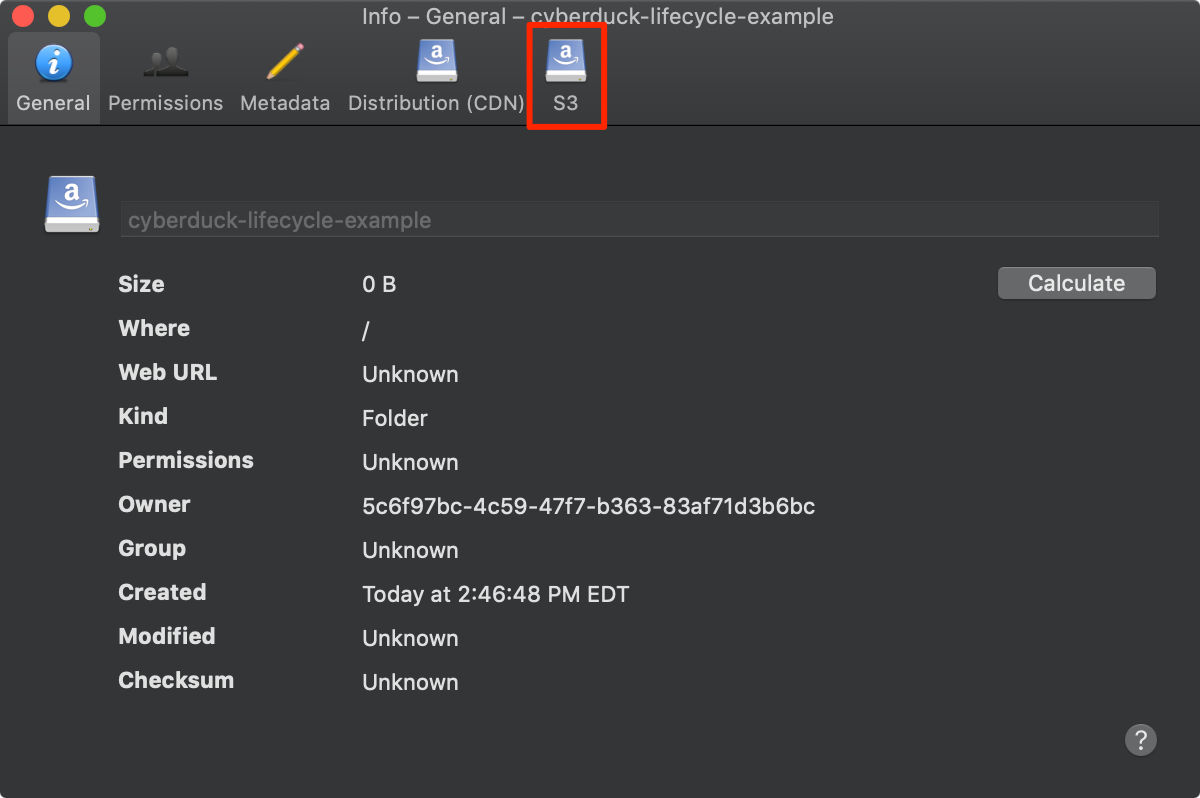
1. In Cyberduck, **right click** or **control +** click the desired bucket.
2. Select the **S3** tab to open the Amazon S3 bucket settings.
3. In the Lifecycle options, enable **Delete files** and select a time interval from the drop-down menu below it.
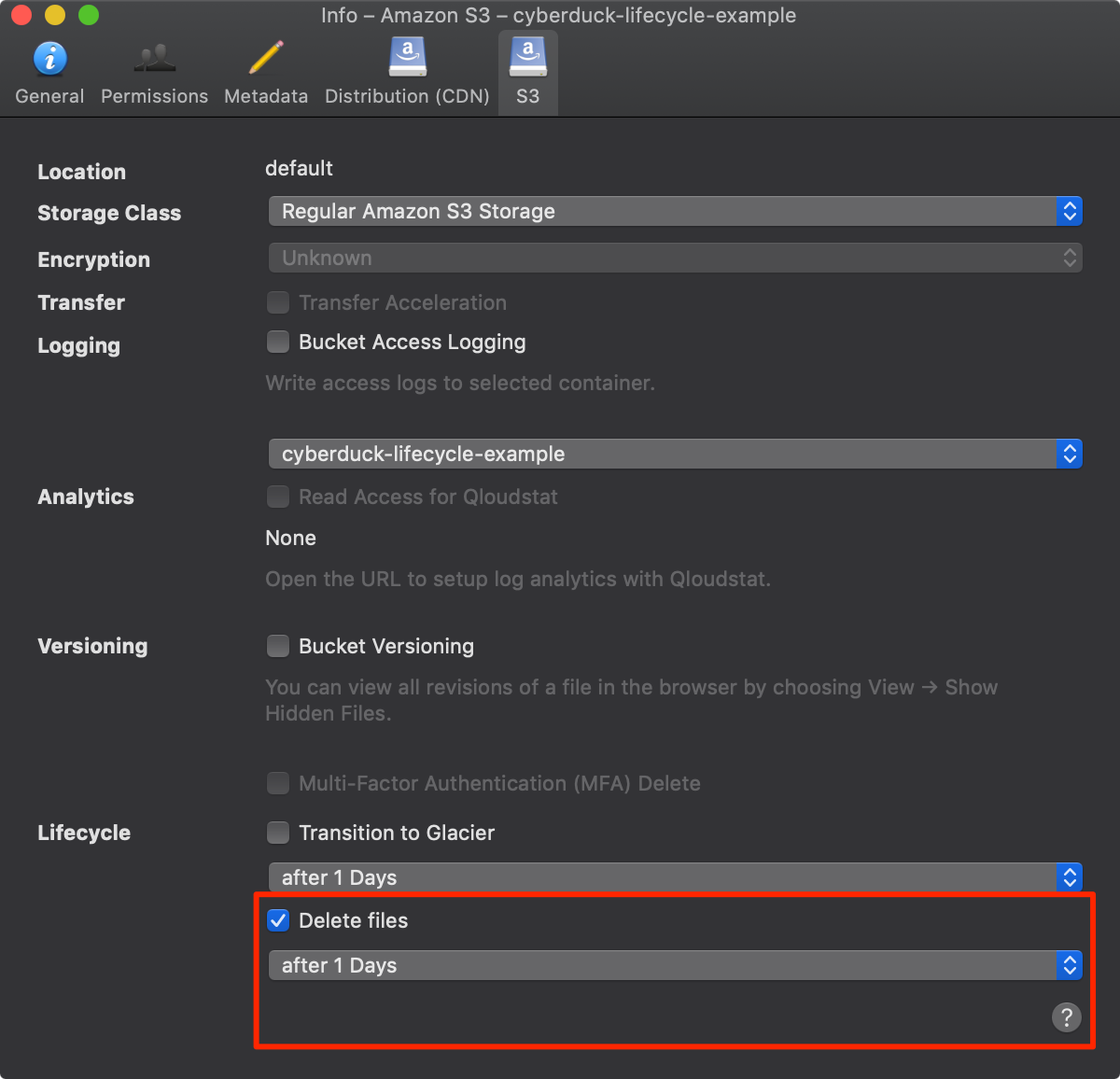
You've enabled a lifecycle policy for the bucket. Objects in that bucket will be deleted after the designated time.
[Back to top](#create-and-delete-lifecycle-policies)
# Disable a lifecycle policy
Here's how to disable lifecycle policies, using various tools:
To disable a lifecycle policy with s3cmd, you can simply delete it, using the `dellifecycle` command. Replace `example-bucket` with the name of your bucket:
```
s3cmd dellifecycle s3://example-bucket
```
You'll see a confirmation that the lifecycle policy was deleted:
```text Output
s3://example-bucket: Lifecycle Policy deleted
```
To disable a lifecycle policy, uncheck **Delete files** in the Lifecycle options in Cyberduck.
```

```
***
# Use lifecycle policy filters
You can use more complex filters with a lifecycle policy, to help identify objects based on specific rules that you define.
You can define a specific tag to assign to your objects. Then, you can use a lifecycle policy filter to delete tagged objects, after X days. Your application can declare a lifecycle by automatically deleting tagged objects when they reach the age you define.
For example, you can create tags named, `1day`, `10day`, and `30day` and apply them to delete objects, one, 10, and 30 days after they were created.
## Tag example
This example shows you how to add a tag to a lifecycle policy to delete a tagged object from a bucket after one day.
1. Create a policy xml file, using settings for tags:
```xml delete_all_after_1day_wtags.xml
delete-tagged-objects
retention
1day
Enabled
1
```
2. Set the policy for the bucket:
```xml set_policy.xml
$ s3cmd setlifecycle delete_all_after_1day_wtags.xml s3://example-bucket
s3://example-bucket/: Lifecycle Policy updated
```
3. Check the policy for the bucket:
```xml check_policy.xml
$ s3cmd getlifecycle s3://example-bucket
delete-tagged-objects
retention
1day
Enabled
1
```
4. Set the tag on your objects:
```xml set_tag.xml
$ s3cmd settagging s3://example-bucket/test_file.txt retention=1day
s3://example-bucket/test_20241128.txt: Tagging updated
```
```xml set_tag.xml
s3cmd gettagging s3://example-bucket/test_20241128.txt
s3://example-bucket/test_20241128.txt (object):
retention: 1day
```
Any objects with the tag will be deleted after one day.
```xml set_tag2.xml
retention: 1day
```
## Limits
These limits apply when using tags to apply a lifecycle policy.
| Description | Limit |
| :------------------------------------------------------------ | :------------------------------------------------------------------------------------------------------------------------------------------------------------------------------------------------------------------------------------------------ |
| Number of tags that can be set at a time per object | Maximum of 10 tags. |
| Rate limit for setting Object Storage tags | For E2/E3 rate limits, `GetObjectTagging` counts as a `GET` and `PutObjectTagging` counts as a `PUT`. |
| Maximum file size for the number of tags supported by the API | Tag keys are limited to 128 Unicode characters each, tag values are 256 characters. Every Unicode character counts as one character against the 128 or 256 character limit. There is no relationship or restriction between tags and object size. |
You can also use a lifecycle policy to filter objects based on a specific prefix, and delete those objects after a certain number of days. Start by defining a prefix and applying it to the key (name) of your objects. Then, you can limit deletion based on this object name filter.
For example, you can set up objects in your bucket to use a prefix, as part of their key that also includes a unique customer ID:
- `customerid1/object1.txt`
- `customerid1/object2.txt`
- `customerid2/object1.txt`
- `customerid2/object2.txt`
With this, you can set up the lifecycle policy to identify objects prefixed with `customerid1/`, to set a lifecycle of 30 days. Objects prefixed with `customerid2/` can be set to a lifecycle of 60 days.
## Prefix example
This example shows you how to add a prefix filter to a lifecycle policy that will delete an object from a bucket if it includes the prefix “abc”.
1. Create a policy xml file, using settings for a prefix:
```xml delete_all_after_1day_wprefix.xml
delete-prefixed-objects
abc
Enabled
1
```
2. Set the policy for the bucket.
```xml set_policy.xml
$ s3cmd setlifecycle delete_all_after_1day_wprefix.xml s3://example-bucket
s3://example-bucket/: Lifecycle Policy updated
```
3. Check the policy for the bucket.
```xml check_policy.xml
$ s3cmd getlifecycle s3://example-bucket
delete-tagged-objects
abc
Enabled
1
```
4. Create an object named "abcde/fg.txt".
```xml create_object.xml
$ touch empty-file
$ s3cmd put empty-file s3://example-bucket/abcde/fg.txt
upload: 'empty-file' -> 's3://example-bucket/abcde/fg.txt' [1 of 1]
0 of 0 0% in 0s 0.00 B/s done
```
Any objects that include the prefix "abc" will be deleted after one day.
[Back to top](#use-lifecycle-policy-filters)
# Sibling pages
* [Overview](https://techdocs.akamai.com/cloud-computing/docs/object-storage.md)
* [Get started with Object Storage](https://techdocs.akamai.com/cloud-computing/docs/getting-started-with-object-storage.md)
* [Manage access keys](https://techdocs.akamai.com/cloud-computing/docs/manage-access-keys.md)
* [Manage buckets](https://techdocs.akamai.com/cloud-computing/docs/create-and-manage-buckets.md)
* [Manage objects](https://techdocs.akamai.com/cloud-computing/docs/upload-and-manage-files-objects.md)
* [Manage access and permissions with ACLs](https://techdocs.akamai.com/cloud-computing/docs/define-access-and-permissions-using-acls-access-control-lists.md)
* [Manage access and permissions with bucket policies](https://techdocs.akamai.com/cloud-computing/docs/define-access-and-permissions-using-bucket-policies.md)
* [Use URLs for access](https://techdocs.akamai.com/cloud-computing/docs/access-buckets-and-files-through-urls.md)
* [Clients and tooling](https://techdocs.akamai.com/cloud-computing/docs/clients-and-tooling.md)
* [Object Storage use cases](https://techdocs.akamai.com/cloud-computing/docs/use-cases-for-object-storage.md)
* [Data protection](https://techdocs.akamai.com/cloud-computing/docs/data-protection.md)
* [Monitor Object Storage](https://techdocs.akamai.com/cloud-computing/docs/monitor-object-storage.md)
* [Cancel Object Storage](https://techdocs.akamai.com/cloud-computing/docs/cancel-object-storage.md)