---
updatedAt: 2026-03-01T18:58:31.000Z
agentTools:
siteIndex: https://techdocs.akamai.com/llms.txt
projectIndex: https://techdocs.akamai.com/adaptive-media-delivery/llms.txt
---
# The Content-Type header
When AMD recognizes a supported file, it automatically defines it as a media file based on the Content-Type header that’s included in the response. You can change this.
The default approach applies a fixed content type value via metadata, in an attempt to optimize the delivery of media assets via AMD. Since AMD sets this to a standard, fixed value, it doesn't have to read from the Content-Type header on your origin and generate individual Content-Type headers in the responses. Reading from this header with each request could delay delivery a negligible amount of time.
What if you need to customize your Content-Type header in your responses? A typical Content-Type header indicates the original media type of the requested resource. You can get this header to report this in the response, or you can apply other unique information. You do this by including optional behaviors in your AMD property and configuring them appropriately.
# The Modify Outgoing Response Header behavior
You can manually set the desired Content-Type using the Modify Outgoing Response Header (MORH) behavior.
1. Click **Add Rule**. The MORH behavior isn’t supported for use in the Default Rule.
2. Select **Blank Rule Template** from the list.
3. Click **Add Match**.
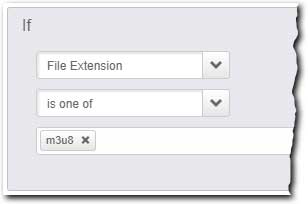
4. In Criteria, set the "If" match parameters to:
* **File Extension**, **Filename**, **Path**, **Hostname**, or **Variable Match**
* **is one of**
5. Input an applicable value in the Select Items field, based on the type of match criteria you selected. For example, if you set this to **Filename**, and you want to target your manifest file, you could input “**manifest.m3u8**.”
6. Click **Add Behavior**.
7. In Search available behaviors, type "modify" and select Modify Outgoing Response Header from the list.
8. Click **Insert Behavior**.
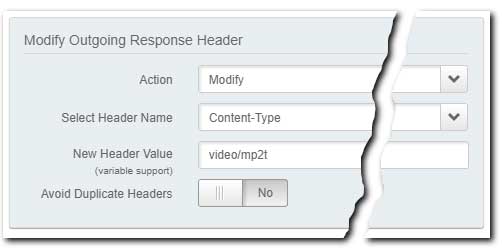
9. Set Action to **Modify** and Select Header Name to **Content-Type**.
10. In Header Value, enter what you want to be included in the Content-Type header in the response. For example, if you’ve set this rule up to look for requests for your manifest.m3u8 file, you could set this to return the MIME type for a `ts` segment, `video/mp2t`.
11. Repeat this process to add more rules for different content types. Each specific content type needs to be set up in its own rule.
# Example use case
In this example, we'll set up three separate rules to report three separate content types.
## Before you begin
This process uses the hostname match criteria in one of the rules. Before we can apply this, we need to define a separate property hostname in an AMD property. So, we’d need two property hostnames set up for this scenario:
* **The primary property hostname**. Requests to the URL defined here will be resolved to handle the majority of the requests. We’re using the URL, “baseball-videos.com” for this property hostname. The first two rules in this example will apply to requests from this hostname.
* **The secondary property hostname**. This hostname is used to handle requests for specific media. We’ll apply it in a separate rule to manage the content-type response via the MORH behavior. We’ve used “baseball-videos-legacy-windows.com” for this property hostname.
## Set up process
1. Click **Add Rule**.
2. Click **Add Match** and set the criteria to **File Extension** and **is one of**.
3. Use the Select Items field to select the file extension. We'll pick **ts** for an MPEG transport stream.
4. Click **Add Behavior**.
5. In Search available behaviors, type "**modify**" and select **Modify Outgoing Response Header** from the list.
6. Click **Insert Behavior**.
7. Set Action to **Modify** and set Select Header Name to **Content-Type**.
8. Set the New Header Value. The default MIME type for ts files is `video/mp2t`, so we input that here.
[block:callout]
{
"type": "info",
"body": "If you don't see the file type you want in the Select Items drop-down, you can manually input the desired file extension without the period. You can also use a custom New Header Value, if you don't want to enter the default MIME type for a file format. What you input will be included in the Content-Type header in the response."
}
[/block]
9. Click **Add Rule** again, to add another rule beneath the one you just set up.
10. Click **Add Match** and set the criteria to **File Extension** and is **one of**.
11. Use the *Select Items* field to select the file extension. We'll pick **m4v** for an MPEG-4 video container format.
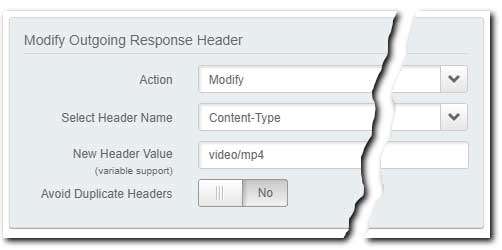
12. Repeat **steps 4 - 7** to add the Modify Outgoing Response Header behavior to this rule.
13. Set the New Header Value. The default MIME type for `m4v` files is `video/mp4`, so we input that here.
14. Click **Add Rule** again.
15. Click **Add Match** and set the criteria to **Hostname** and is **one of**.
16. Use the *Select Items* field to specify the hostname. We’ve set up the property hostname using the URL, “baseball-videos-legacy-windows.com.” So, we set that here.
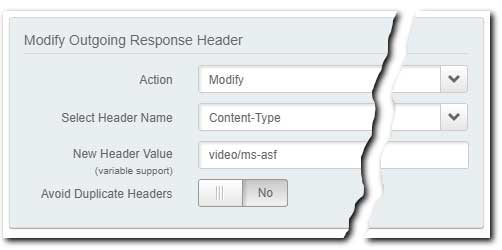
17. Repeat **steps 4 - 7** to add the Modify Outgoing Response Header behavior to this rule.
18. Set the New Header Value. End users targeting this URL are requesting Windows Advanced Systems Format video, including `asf`, `wma`, and `wmv` format media. So, we’ll set this to the default MIME type for these formats, which is `video/ms-asf`.
You can continue to add more rules to your property in this fashion and customize them for other file types. When a request comes in that matches any of these criteria, the Content-Type header will be returned in the response and look something like this:
### Requests for a .ts segment file
[block:code]
{
"codes": [
{
"code": "Content-Type: video/mp2t",
"language": "text"
}
]
}
[/block]
### Requests for an .m4v file
[block:code]
{
"codes": [
{
"code": "Content-Type: video/mp4",
"language": "text"
}
]
}
[/block]
### Request to the hostname, baseball-videos-legacy-windows.com
[block:code]
{
"codes": [
{
"code": "Content-Type: video/ms-asf",
"language": "text"
}
]
}
[/block]
# Existing AMD properties and MORH
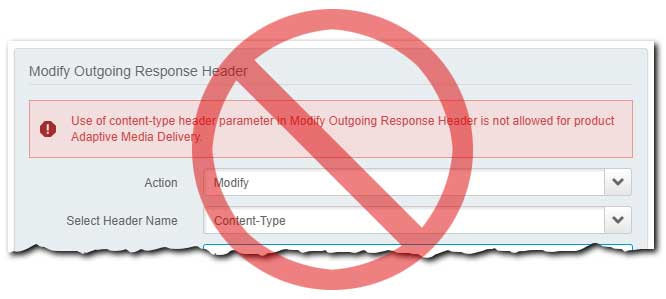
With past versions of the MORH behavior, you couldn't modify the Content-Type header in your AMD property. You got an error message when you tried to do so.
Now, you can update an existing AMD property to a new version and add this support.
# The Default CORS Policy rule
[This rule](https://techdocs.akamai.com/adaptive-media-delivery/docs/default-cors-policy-rule) is added by default in your AMD property. It contains several instances of the same Modify Outgoing Response Header behavior, pre-populated with values to optimize delivery. Akamai recommends that you leave this rule in your property, and don't change its settings.
If you want to manage your Content-Type header, use a different rule, as described in the previous sections.
# Sibling pages
* [AMD origin failover](https://techdocs.akamai.com/adaptive-media-delivery/docs/add-amd-origin-failover.md)
* [Auth Token 2.0 Verification](https://techdocs.akamai.com/adaptive-media-delivery/docs/auth-token-20-verification-amd.md)
* [Bit Rate Limiting](https://techdocs.akamai.com/adaptive-media-delivery/docs/add-bit-rate-limiting.md)
* [Breadcrumbs](https://techdocs.akamai.com/adaptive-media-delivery/docs/add-breadcrumbs.md)
* [Client Characteristics](https://techdocs.akamai.com/adaptive-media-delivery/docs/client-characteristics.md)
* [Client Hints](https://techdocs.akamai.com/adaptive-media-delivery/docs/client-hints.md)
* [Cloud Access Manager](https://techdocs.akamai.com/adaptive-media-delivery/docs/add-cloud-access-manager.md)
* [Cloud Wrapper](https://techdocs.akamai.com/adaptive-media-delivery/docs/cloud-wrapper.md)
* [Common Media Client Data](https://techdocs.akamai.com/adaptive-media-delivery/docs/common-media-client-data-amd.md)
* [Content Targeting Protection](https://techdocs.akamai.com/adaptive-media-delivery/docs/add-content-tgting-prot.md)
* [Early Data (0-RTT)](https://techdocs.akamai.com/adaptive-media-delivery/docs/early-data-0-rtt.md)
* [Edge IP Binding](https://techdocs.akamai.com/adaptive-media-delivery/docs/add-edge-ip-binding.md)
* [EdgeWorkers](https://techdocs.akamai.com/adaptive-media-delivery/docs/add-edgeworkers.md)
* [Enhanced Debug](https://techdocs.akamai.com/adaptive-media-delivery/docs/enhanced-debug.md)
* [Enhanced Proxy Detection](https://techdocs.akamai.com/adaptive-media-delivery/docs/add-enhanced-proxy-detn.md)
* [HTTP to HTTPS Upgrade](https://techdocs.akamai.com/adaptive-media-delivery/docs/upgrade-req-http-https.md)
* [Low Latency Streaming support](https://techdocs.akamai.com/adaptive-media-delivery/docs/add-low-latency-support.md)
* [Manifest Personalization for DASH](https://techdocs.akamai.com/adaptive-media-delivery/docs/add-manifest-personalization-dash.md)
* [Manifest Personalization for HLS](https://techdocs.akamai.com/adaptive-media-delivery/docs/add-manifest-personalization-for-hls.md)
* [Media Encryption](https://techdocs.akamai.com/adaptive-media-delivery/docs/add-media-enc.md)
* [Mixed Mode](https://techdocs.akamai.com/adaptive-media-delivery/docs/use-mixed-mode-amd.md)
* [Origin IP access control list](https://techdocs.akamai.com/adaptive-media-delivery/docs/origin-ip-access-control-list-amd.md)
* [Prefetching](https://techdocs.akamai.com/adaptive-media-delivery/docs/add-prefetching.md)
* [Protect connections with mTLS](https://techdocs.akamai.com/adaptive-media-delivery/docs/protect-connections-with-mtls.md)
* [Protocol Downgrade](https://techdocs.akamai.com/adaptive-media-delivery/docs/add-protocol-downgrade.md)
* [Quick Retry](https://techdocs.akamai.com/adaptive-media-delivery/docs/add-quick-retry.md)
* [SureRoute](https://techdocs.akamai.com/adaptive-media-delivery/docs/sureroute.md)
* [Token Authentication](https://techdocs.akamai.com/adaptive-media-delivery/docs/add-token-auth.md)
* [Token-based Access Revocation](https://techdocs.akamai.com/adaptive-media-delivery/docs/add-token-based-access-rev.md)
* [Watermarking](https://techdocs.akamai.com/adaptive-media-delivery/docs/add-wmk.md)
* [Mapping Solution – Media Delivery Type](https://techdocs.akamai.com/adaptive-media-delivery/docs/add-use-case-based-edge-mapping.md)
* [The Vary HTTP header](https://techdocs.akamai.com/adaptive-media-delivery/docs/include-vary-http-header.md)